Python Code Editor
Overview
The BonicBot Education Suite provides a built-in Python Code Editor that runs directly on the robot’s onboard Raspberry Pi. This enables users to write, run, and test code directly on the robot, without requiring any external IDE setup. The environment is tightly integrated with the robot through Python SDK, making it ideal for hands-on robotics learning, rapid prototyping, and real-time testing.
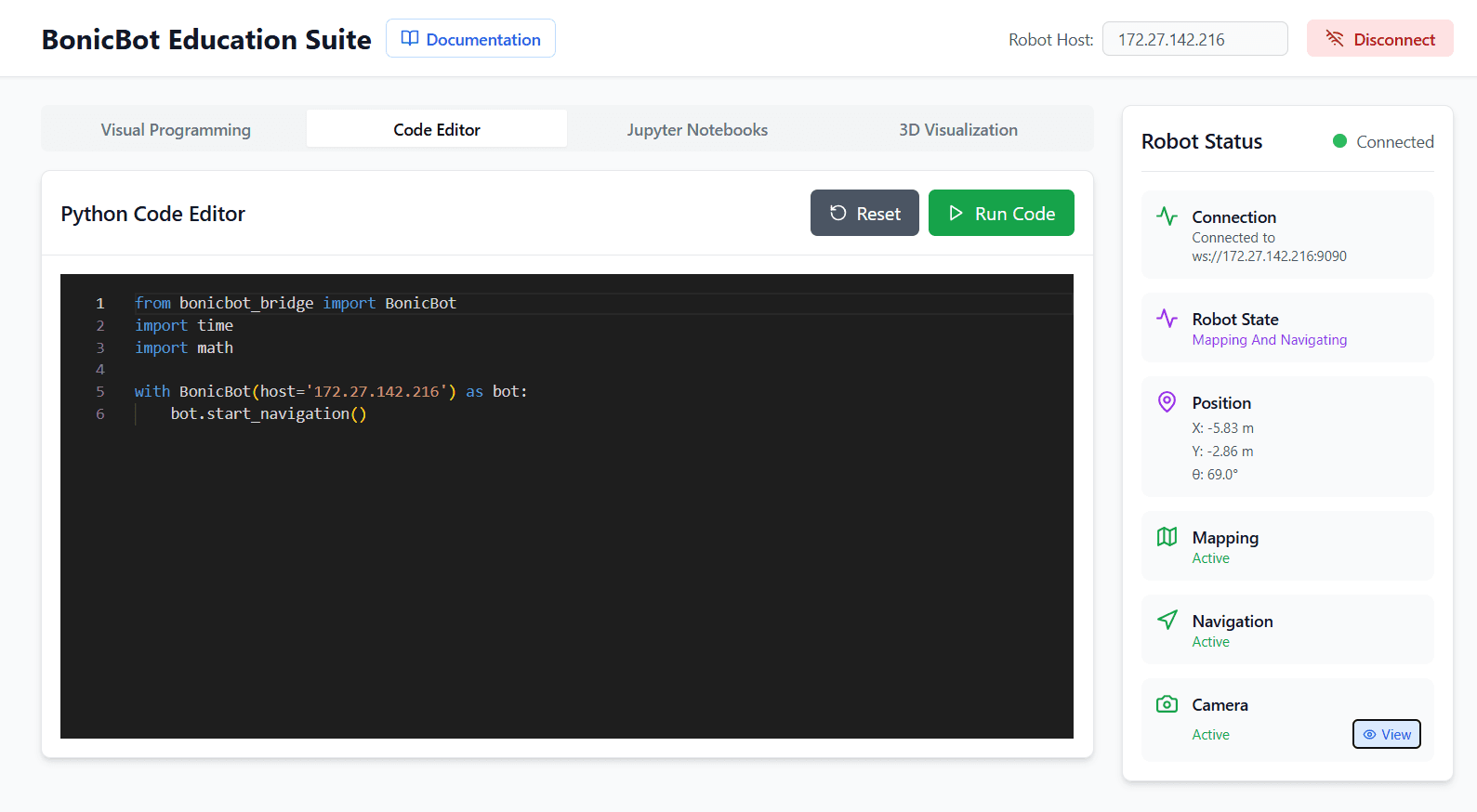
Available Buttons
Run Code
- Executes the written Python program
- Sends commands directly to the connected robot
- Robot responds immediately based on the code
Reset
- Clears the editor
- Stops the current execution
- Resets the coding environment
Robot Status Panel
While running Python programs, users can see the Robot Status panel on the right side.
Information shown:
- Connection Status – Connected / Disconnected
- Robot State – Mapping and Navigating
- Position – X, Y, and orientation (θ)
- Mapping Status – Active or Inactive
- Navigation Status – Active or Inactive
- Camera Status – Active with live view option
This helps users understand how their Python code affects the robot in real time.
Why Use the Education Suite Instead of Other IDEs?
1. Runs Directly on the Robot
- No remote SSH setup
- No dependency issues
- No environment mismatch
- Code executes on the same system that controls the hardware
2. Zero Configuration Required
Unlike external IDEs (VS Code, PyCharm, etc.), the Education Suite:
- Comes pre-installed
- Has the SDK already linked
- Has all robot services preconfigured
Users can start coding immediately.
3. Real-Time Robot Feedback
The UI provides live robot status, including:
- Connection state
- Robot position (X, Y, θ)
- Mapping and navigation status
- Camera feed
This makes debugging visual, intuitive, and beginner-friendly.
4. Tight Hardware Integration
External IDEs require:
- Manual IP handling
- Custom scripts
- SSH tunnels or ROS bridges
The Education Suite:
- Handles communication internally
- Prevents unsafe commands
- Ensures stable interaction with motors and sensors
5. Ideal for Learning & Teaching
- No complex setup for students
- Consistent environment across devices
- Suitable for classrooms, labs, and workshops
- Supports incremental learning from basics to advanced robotics
6. Works with Real Robot and Simulation
The same interface and SDK can be used for:
- Physical robot testing
- Simulation-based development
This enables safe experimentation before deploying to real hardware.
BonicBot SDK (bonicbot_bridge)
The Education Suite uses a native SDK file called bonicbot_bridge, which acts as a bridge between Python code and the robot’s hardware and services. In the Basic Python section of the Education Suite, the same Python SDK file, bonicbot_bridge, is used to connect Python code with the robot’s hardware and services.
What the SDK Provides
Direct access to robot capabilities:
- Wheels and movement
- Arms, servos, and head control
- Sensors (position, battery, navigation state, etc.)
- Camera and vision services
- WebSocket-based communication with the robot service
- Safe and controlled hardware interaction
This SDK is automatically available inside the Education Suite, so no manual installation or configuration is required.
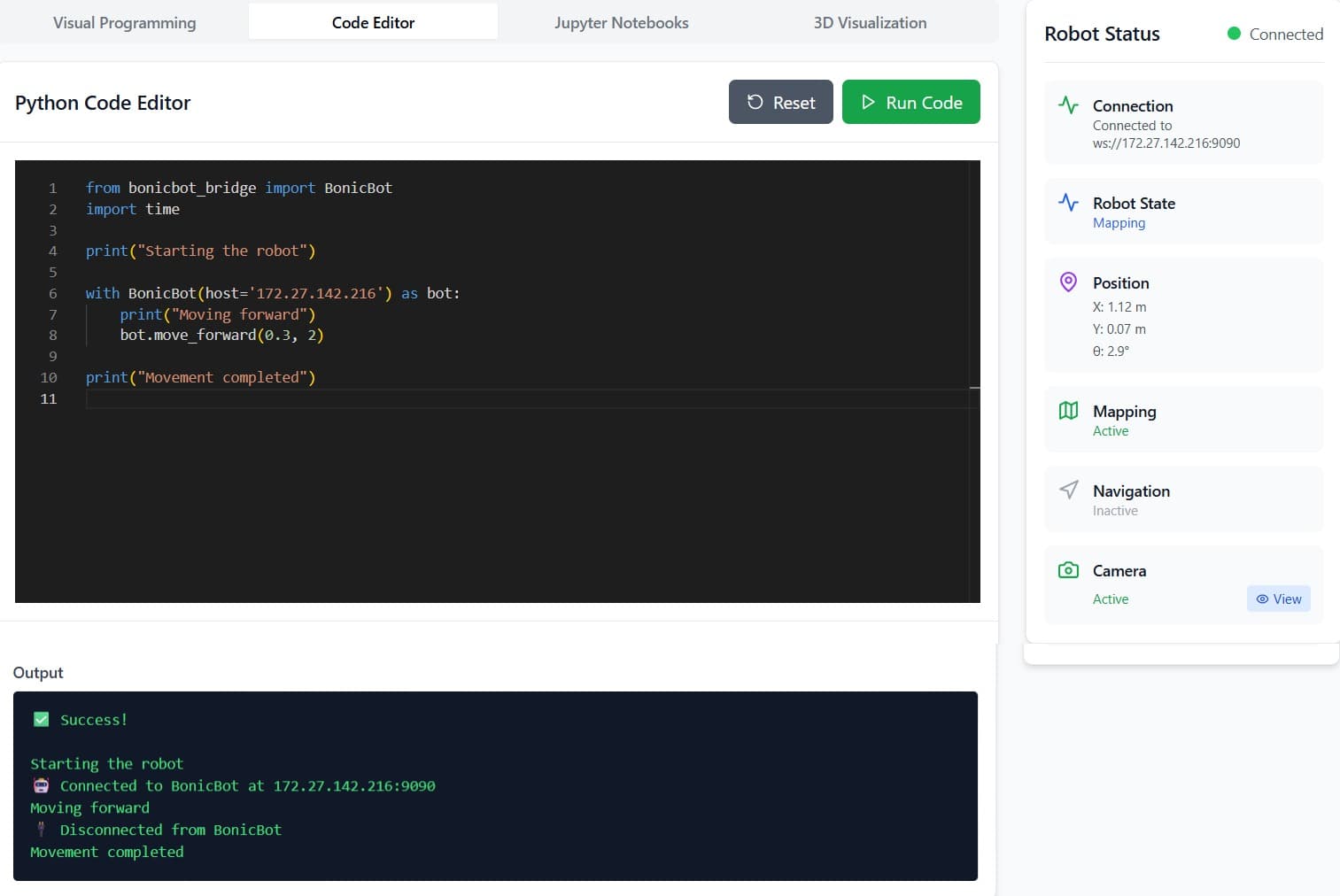
Example 1: Basic Robot Movement
This example connects to the robot and moves it forward.
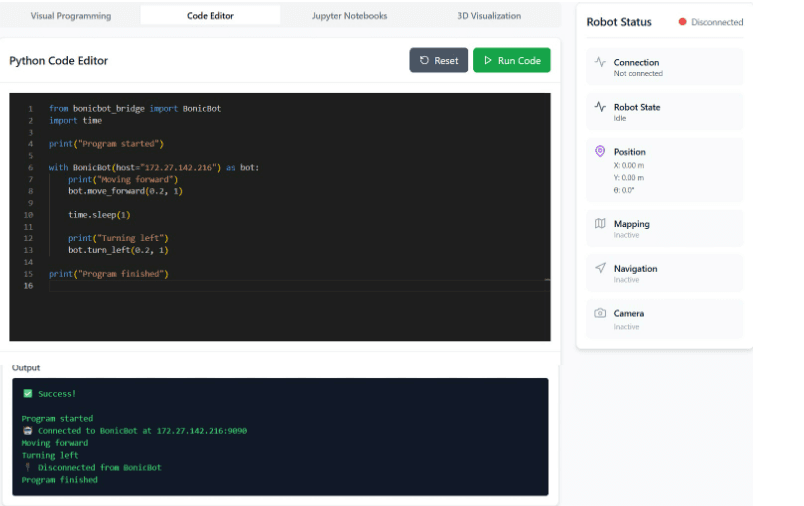
Example 2: Movement with Delay and Messages
This example adds timing control and clearer feedback.
Learning Purpose
The Python SDK in the Education Suite is designed to:
- Teach basic Python programming
- Introduce robotics concepts
- Enable hands-on learning
- Provide instant feedback from the robot