BonicOS — User Guide
What is BonicOS?
BonicOS is the operating system and interactive software that powers your BonicBot M1 robot. Running directly on the robot’s chest screen, BonicOS serves as the robot’s face to the world — the central interface for everyone who interacts with the robot in person.
Whether visitors are having a voice conversation with the AI agent, passersby are watching marketing showreels, or technicians are calibrating hardware joints, everything happens through BonicOS.
This is not a remote-control app. This is the robot.
Everything displayed on your BonicBot M1 chest screen — live AI conversations, marketing showreels, training slide presentations, and hardware diagnostics — is driven directly by BonicOS.
Table of Contents
- Getting Started — First-Time Setup
- The Home Dashboard
- Talking to the Robot — Agent Conversations
- Marketing Mode — Attract & Engage Visitors
- Training Mode — Group Presentations
- Settings
- Diagnosis — Hardware Testing
- Sequences — Robot Motions
- App Updates
- Cloud Control & Yielding
- Troubleshooting & FAQ
1. Getting Started — First-Time Setup
1.1 Sign In
When the app launches for the first time, you’ll see the Administrator Sign In screen.
- Enter the email and password of the bonic.ai account that owns this robot.
- Tap Sign In.
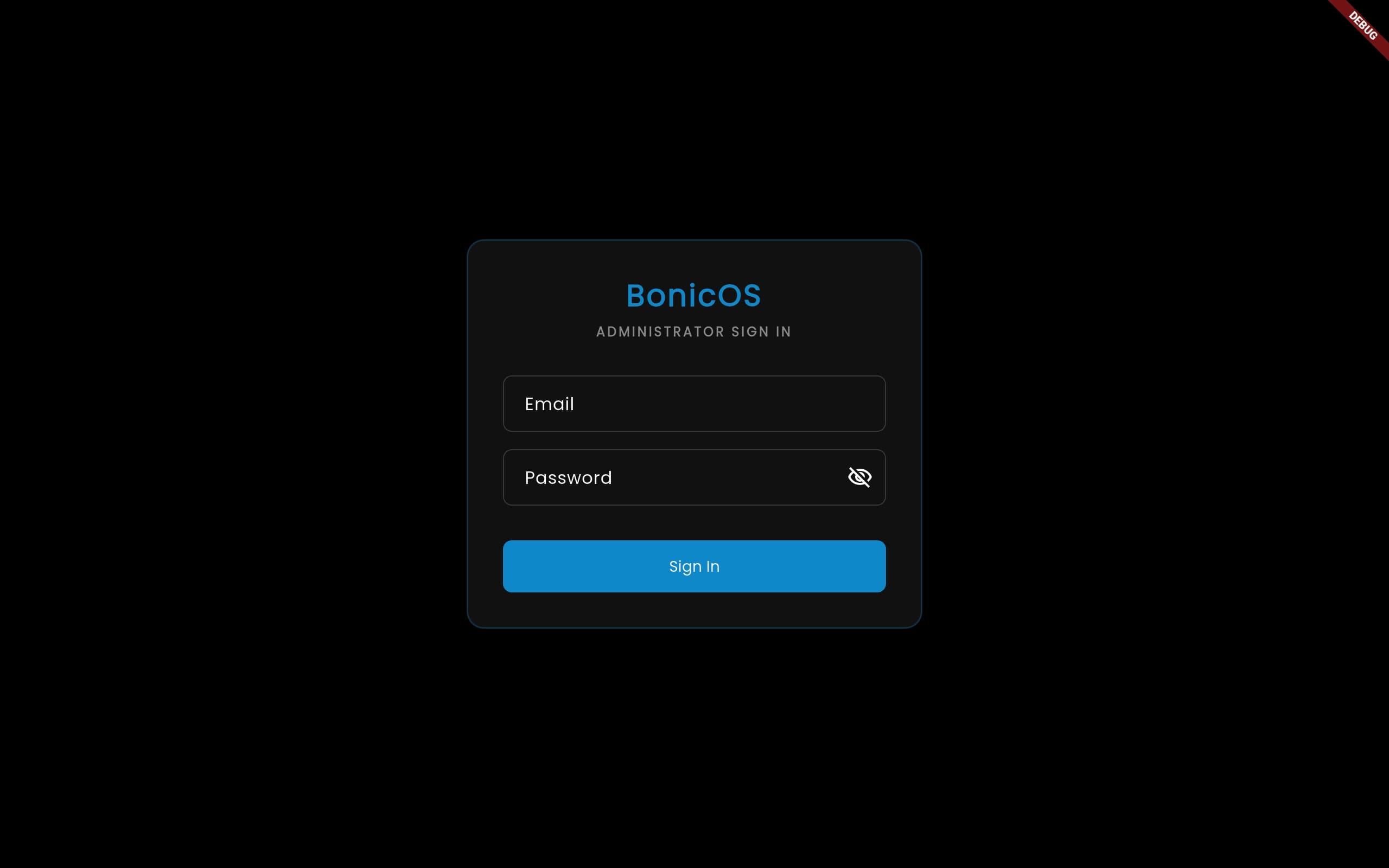
Note: This is a one-time step. After signing in and selecting a robot, the app will boot directly to the Home Dashboard on every future launch — no login needed.
1.2 Select Your Robot
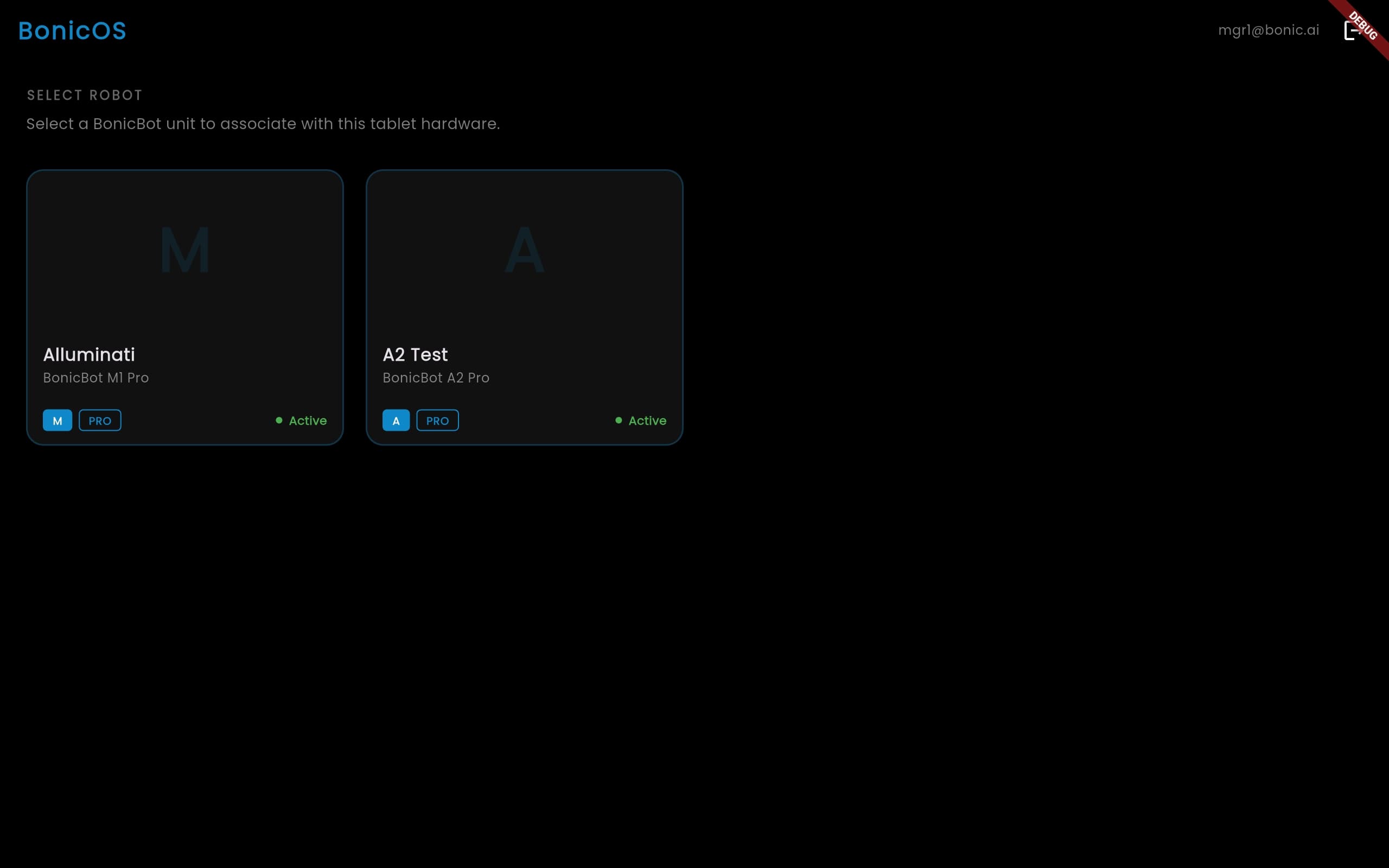
After signing in, you’ll see a list of robots associated with your account. Each card shows:
- Robot name — the name you set on bonic.ai
- Series — A-Series, S-Series, or M-Series
- Robot code — the unique identifier
Tap the robot this tablet is mounted on to select it. The app saves this choice locally and will never ask again unless you sign out.
1.3 What Happens Next
Once a robot is selected, the app:
- Subscribes to the robot’s configuration on Database (always up to date)
- Connects to the robot’s hardware over Bluetooth (automatic, no pairing needed)
- Opens the Home Dashboard — the robot is ready to work
2. The Home Dashboard
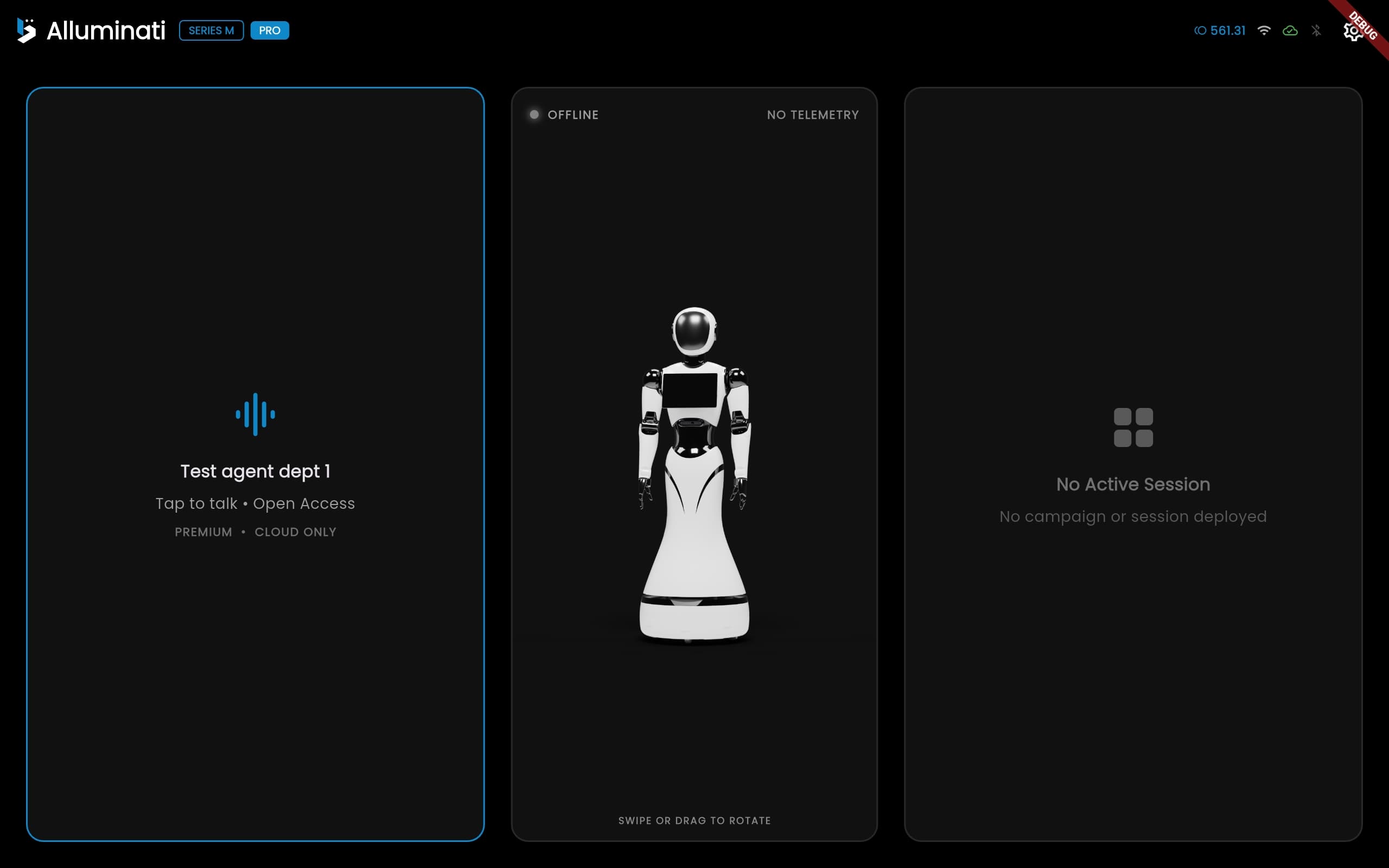
The Home Dashboard is the main screen you see after setup. It shows three main cards:
2.1 Robot 3D Viewer (Centre)
An interactive 3D model of your BonicBot. You can swipe or drag to rotate it.
At the top of this card:
- Connection status — a pulsing green dot with
ONLINEwhen Bluetooth is connected, greyOFFLINEwhen not - Battery — percentage, voltage, and current draw (only visible when connected)
2.2 Agent Card (Left)
Shows the currently active AI agent:
- Agent name — the personality currently loaded
- Access mode —
Open Access(anyone can talk) orAuth Required(face/RFID/credentials needed) - Tier —
PREMIUM,STANDARD, orEDGE - Connectivity —
CLOUD ONLYorOFFLINE SUPPORT
Tap to start a conversation with the robot’s agent (see Section 3).
2.3 Process Session Card (Right)
Shows if a marketing or training session is currently deployed to this robot from bonic.ai:
- When active: shows the session type (e.g. “Marketing”) with “Tap to enter”
- When inactive: shows “No Active Session”
Tap to enter the active session (see Section 4 or Section 5).
2.4 Top Bar
- Robot logo — your organisation’s logo (if uploaded on bonic.ai), or the default Bonic logo
- Robot name and Series badge (e.g.
SERIES M) - PRO badge — shown only if the Pro processor board is fitted
- Status bar — BLE connection indicator and cloud status
- Settings gear icon — opens the Settings screen
2.5 Alert Banner
If the robot hardware reports a critical alert (short circuit, overheat, low battery, actuator failure), a coloured banner appears at the top of the dashboard. Tap the X to dismiss it.
2.6 App Update Banner
When a new version of BonicOS is available, a banner appears:
- “Update available — tap to install” — tap to begin downloading
- “Downloading update… X%” — progress is shown live
- “Installing update…” — the app installs automatically
- If an error occurs, tap to retry
3. Talking to the Robot — Agent Conversations
3.1 Starting a Conversation
From the Home Dashboard, tap the Agent card. Two scenarios:
Open Access agent:
- The Agent View opens immediately
- The AI connects and starts listening
Auth-Required agent (organisation agent):
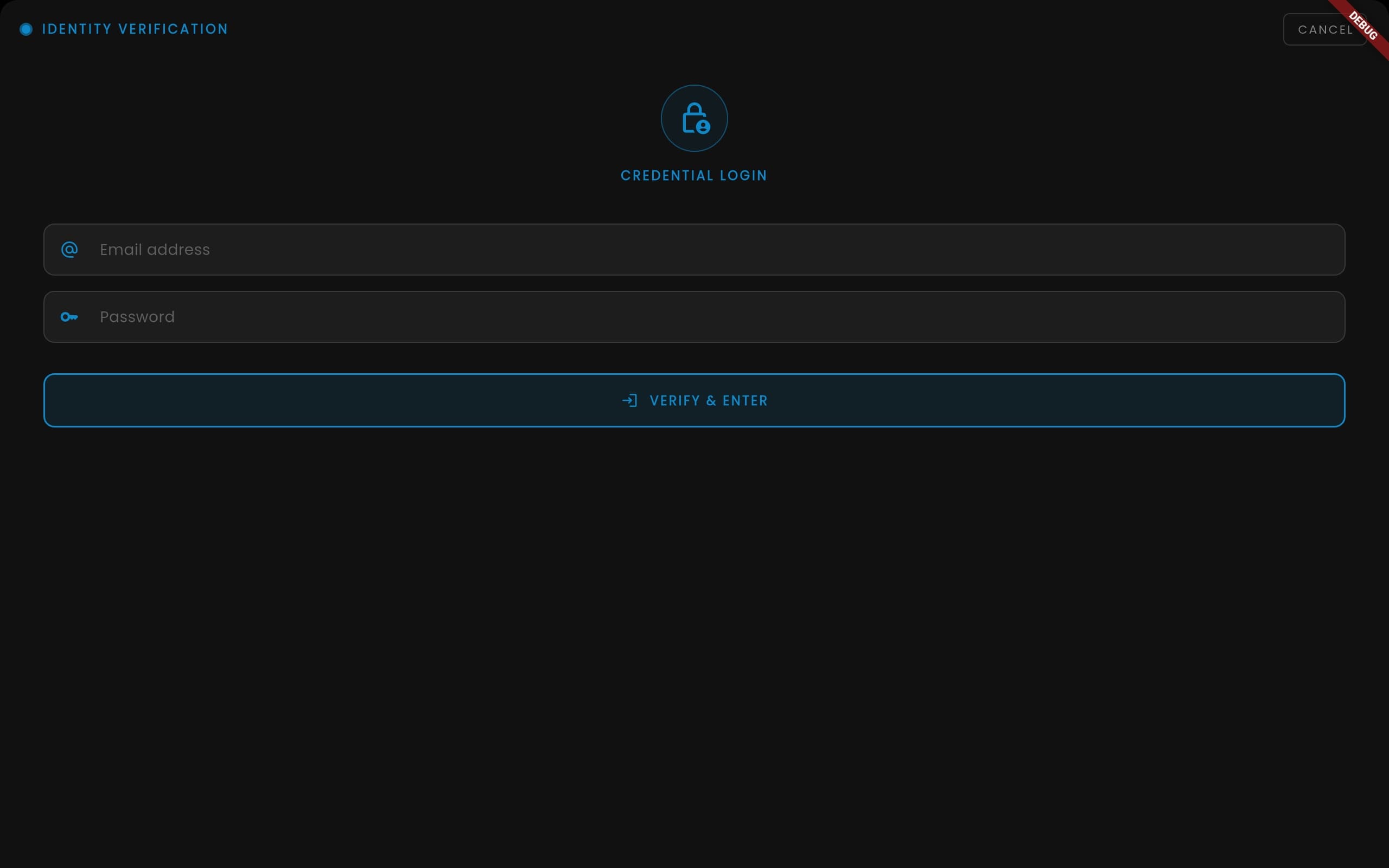
- A security sheet appears asking for authentication
- Supported methods depend on the agent’s configuration:
- Face recognition — look at the camera
- RFID — tap your card
- Email/Password — enter your credentials
- Once authenticated, the Agent View opens
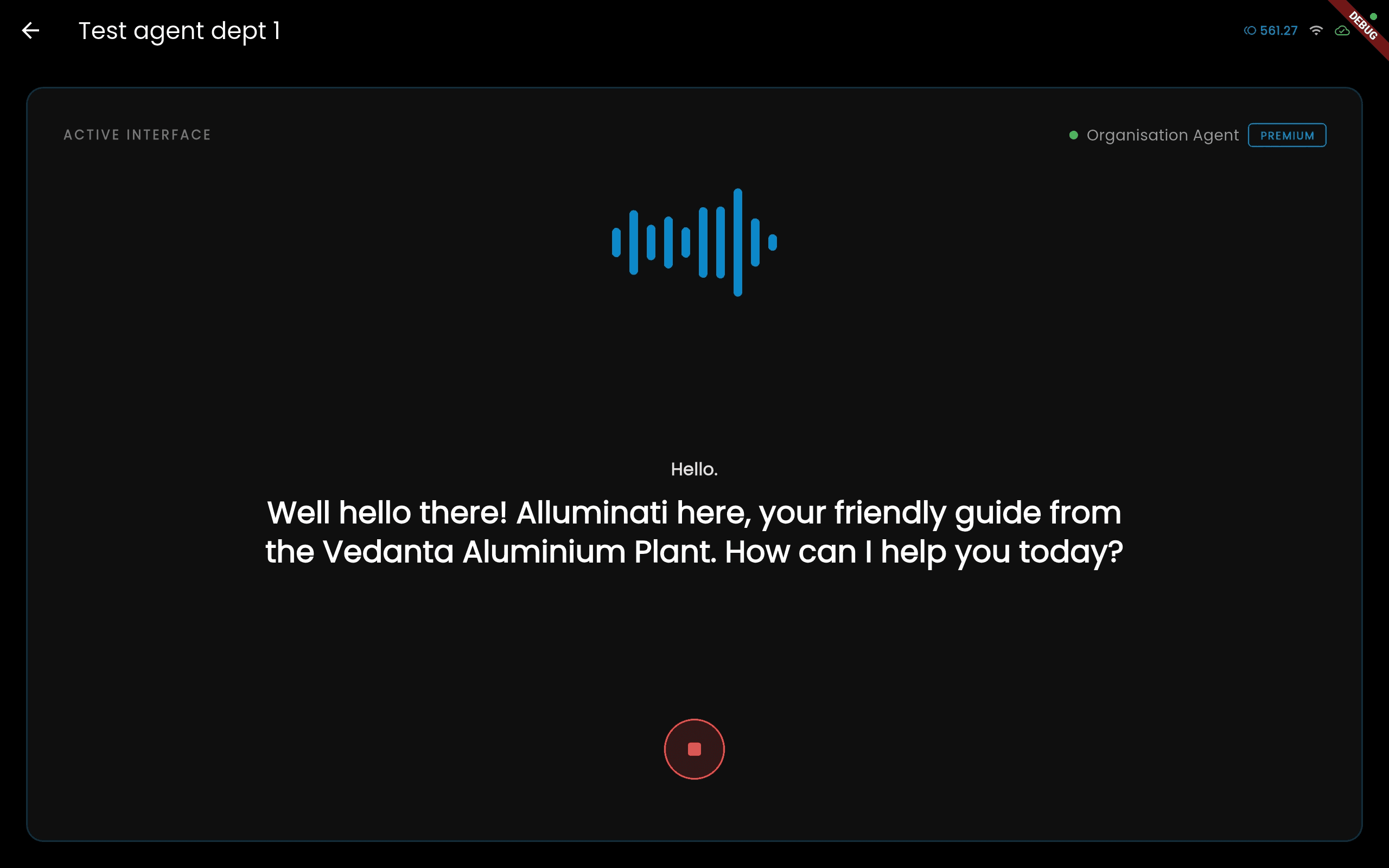
3.2 The Agent View
Once inside, you’ll see:
- Agent name in the top bar, with a tier badge (Premium/Standard/Edge) and language badge
- Animated waveform in the centre — it pulses when the AI is speaking or listening
- Live transcript — shows what you said (input) and what the robot is saying (output)
- Microphone button — tap to toggle listening on/off
- Stop button — tap while the robot is speaking to interrupt it
- Back button — tap to end the conversation and return
3.3 How the Conversation Works
The robot uses one of three AI engines depending on its agent tier:
| Tier | How it Works |
|---|---|
| Premium | Full-duplex voice streaming — speak and listen at the same time, lowest latency |
| Standard | Turn-based — you speak, the robot processes, the robot replies with text-to-speech |
| Edge | Fully offline — runs an on-device AI model, no internet needed |
The agent can also:
- Search the web for current information
- Play motion sequences on the robot’s body (wave, dance, etc.)
- Adjust volume and brightness via voice command
- Search a product catalogue (in marketing mode) and display products on screen
- Collect your email or phone via an on-screen keyboard (in marketing mode)
- Search attached knowledge bases for specific information
- Capture images via the robot’s camera for visual analysis
3.4 Inactivity Timeout
If no one speaks or interacts for 30 seconds, the conversation ends automatically and the app returns to the previous screen.
3.5 Ending a Conversation
- Tap the back button or use the system back gesture
- The AI disconnects and the session ends
- If applicable, the app generates a conversation summary in the background
4. Marketing Mode — Attract & Engage Visitors
Marketing mode is a special process session deployed from bonic.ai Studio. It turns the robot into an autonomous greeter that attracts passersby and engages them one-on-one.
4.1 How It Activates
When an admin launches a marketing session on bonic.ai, the robot automatically enters marketing mode — no action needed on the robot. The Home Dashboard navigates to the Marketing View on its own.
4.2 The Marketing Lifecycle
Marketing mode has four states:
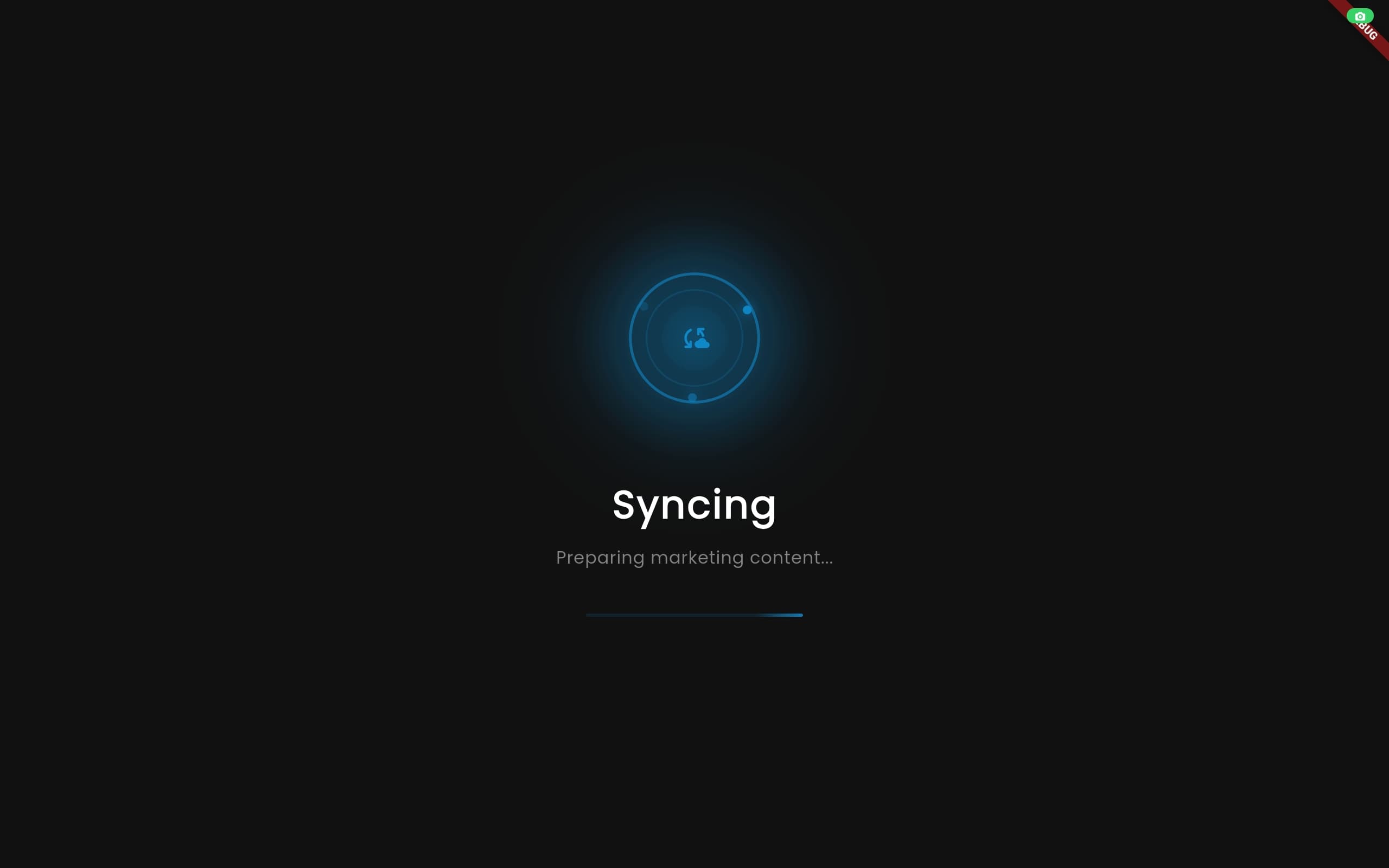
Syncing
When the session first starts, the app downloads and caches all marketing content (showreel media, product images, narration audio). You’ll see a “Syncing — Preparing marketing content…” overlay.
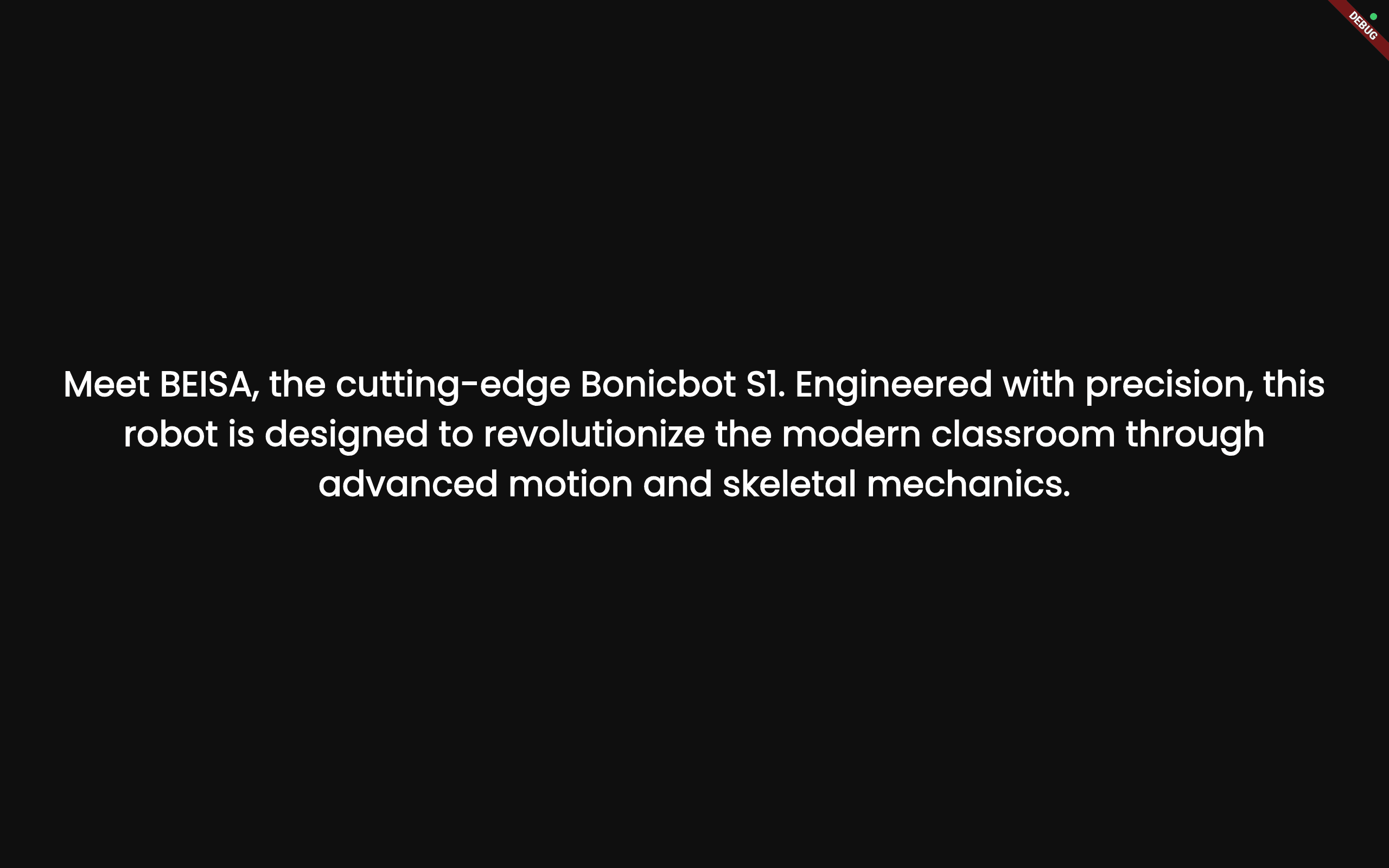
Showreel (Attract Loop)
Once synced, the showreel plays in a continuous loop — a sequence of photos, videos, and narrated content designed to attract attention. This is what visitors see from a distance.
While the showreel plays, the front camera is silently running face detection in the background, looking for someone approaching.
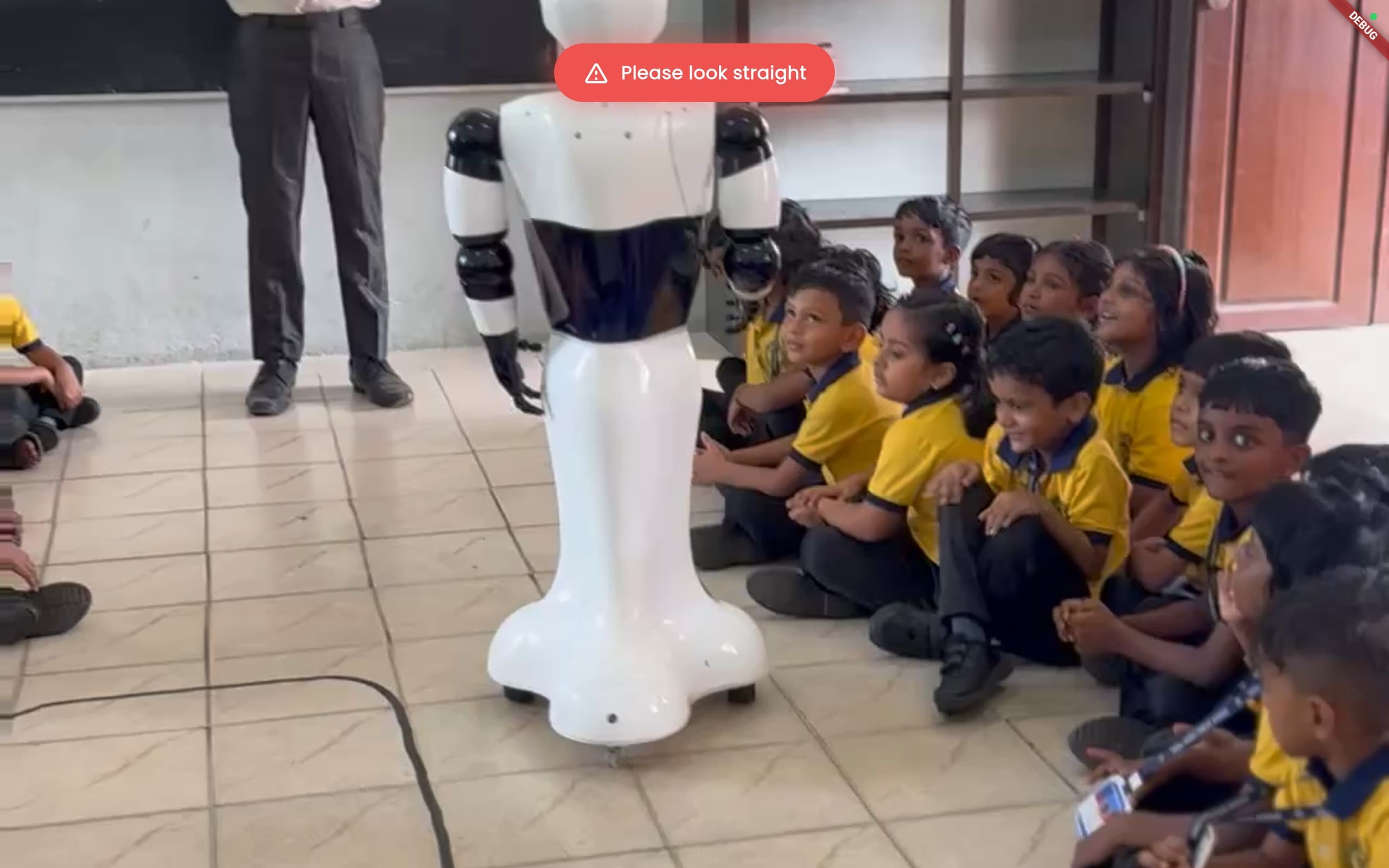
Detecting a Visitor
When someone approaches, the robot:
- Pauses the showreel — a greeting message appears (e.g. “Hello! Come closer!”)
- Checks face quality — the person must be close enough, looking straight, and stable
- Runs face recognition — checks if this person has visited before
- Known visitor: “Welcome back! Are you [Name]?” — they can confirm or decline
- New visitor: assigned a fresh ID automatically
- Opens the conversation — navigates to the Agent View for a one-on-one chat
Conversing
The conversation uses the same Agent View as a regular agent chat, with these marketing-specific additions:
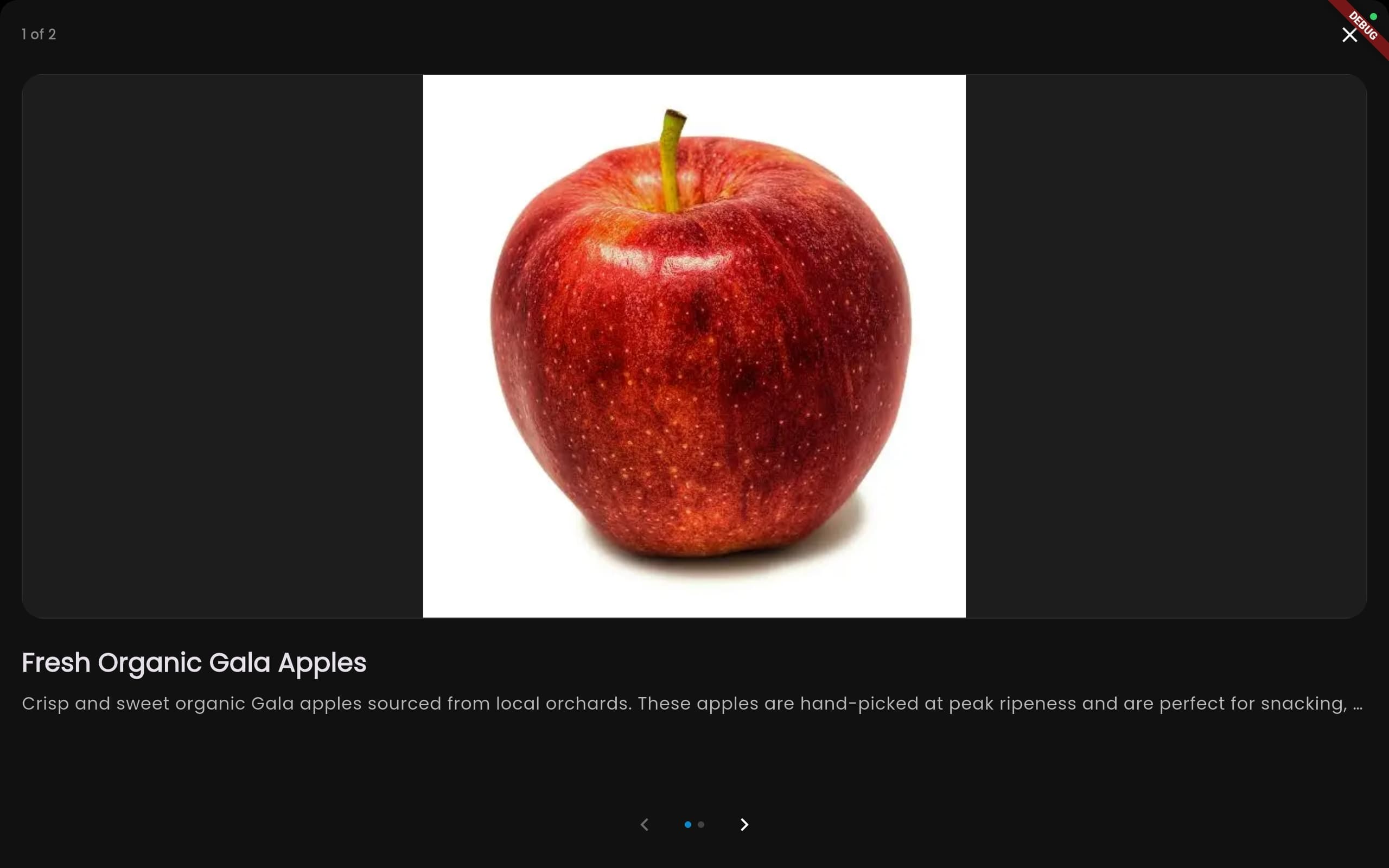
- Product search — the visitor can ask about specific products, and a product carousel appears on screen
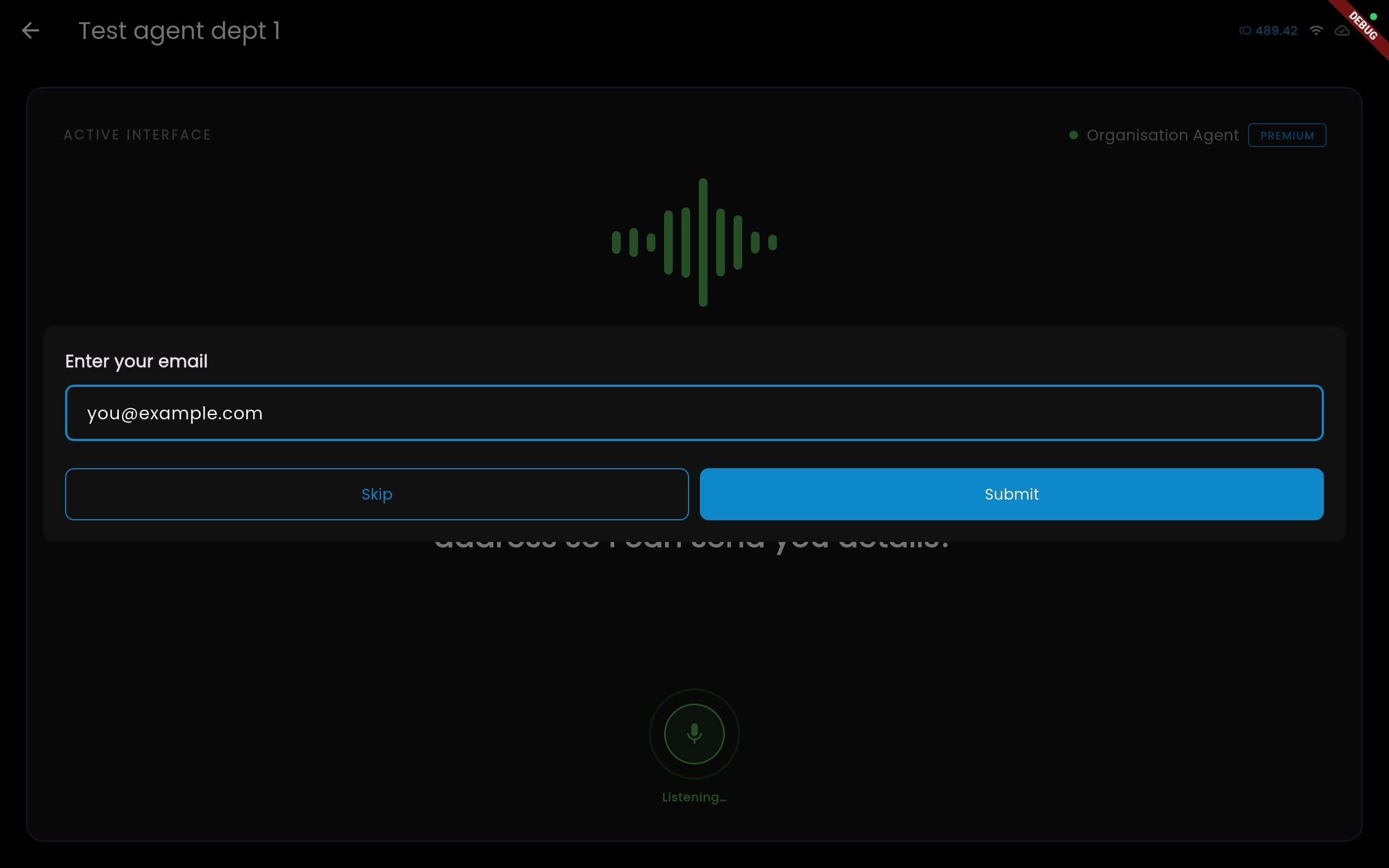
- Lead collection — when the AI asks for email or phone, an on-screen keyboard pops up (no one likes spelling their email out loud!)
- Lead data extraction — at the end, the AI automatically extracts structured lead data from the conversation
Processing (Thank You)
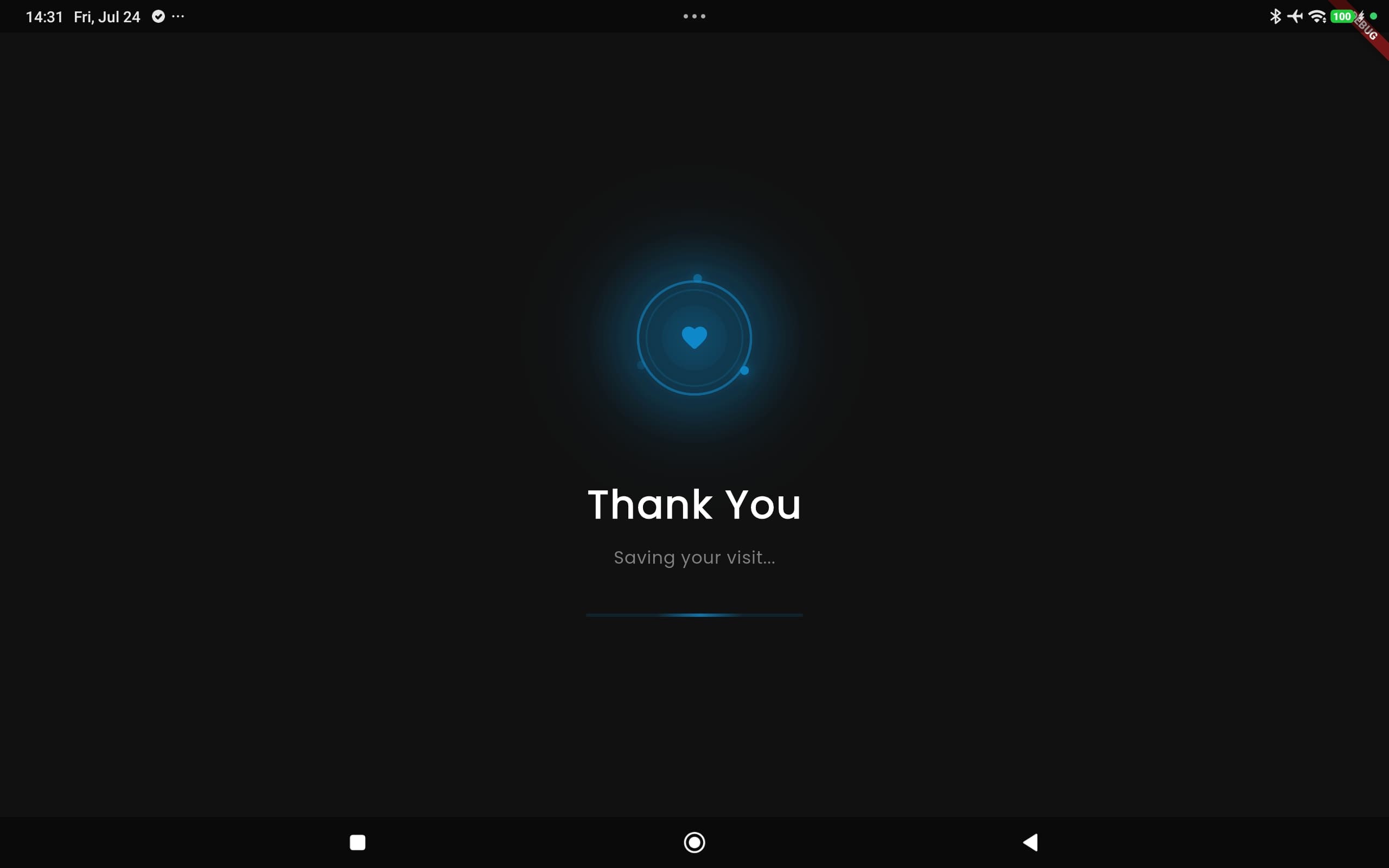
After the visitor leaves (or the operator hits back), the robot shows “Thank You — Saving your visit…” while it:
- Generates a conversation summary
- Extracts structured lead data from the transcript
- Saves everything to the visitor’s session record
Then the showreel resumes and the cycle starts over.
4.3 Stopping Marketing Mode
Marketing mode ends when the admin stops the session on bonic.ai. The robot automatically returns to the Home Dashboard.
5. Training Mode — Group Presentations
Training mode is a structured presentation session for groups — employees, students, or teams.
5.1 How It Activates
Like marketing, training sessions are deployed from bonic.ai and the robot enters training mode automatically.
5.2 The Training Lifecycle
- Syncing — downloads the training content (slides, narration audio)
- QR Code / Pre-Assessment — displays a QR code for attendees to join and optionally take a pre-assessment quiz on their phones via bonic.ai
 3. Slide Presentation — the robot narrates through a slide deck, one slide at a time
- Slides advance automatically after narration
- Attendees can submit live questions via the bonic.ai web page
- The robot answers questions using the slide content as context
 4. Post-Assessment — optional post-training quiz via the same QR/link
5. Done — the session completes
4. Post-Assessment — optional post-training quiz via the same QR/link
5. Done — the session completes
5.3 Admin Controls
During a training session, the admin (on bonic.ai) can:
- Pause / Resume the presentation
- Repeat a slide’s narration
- Skip ahead
6. Settings
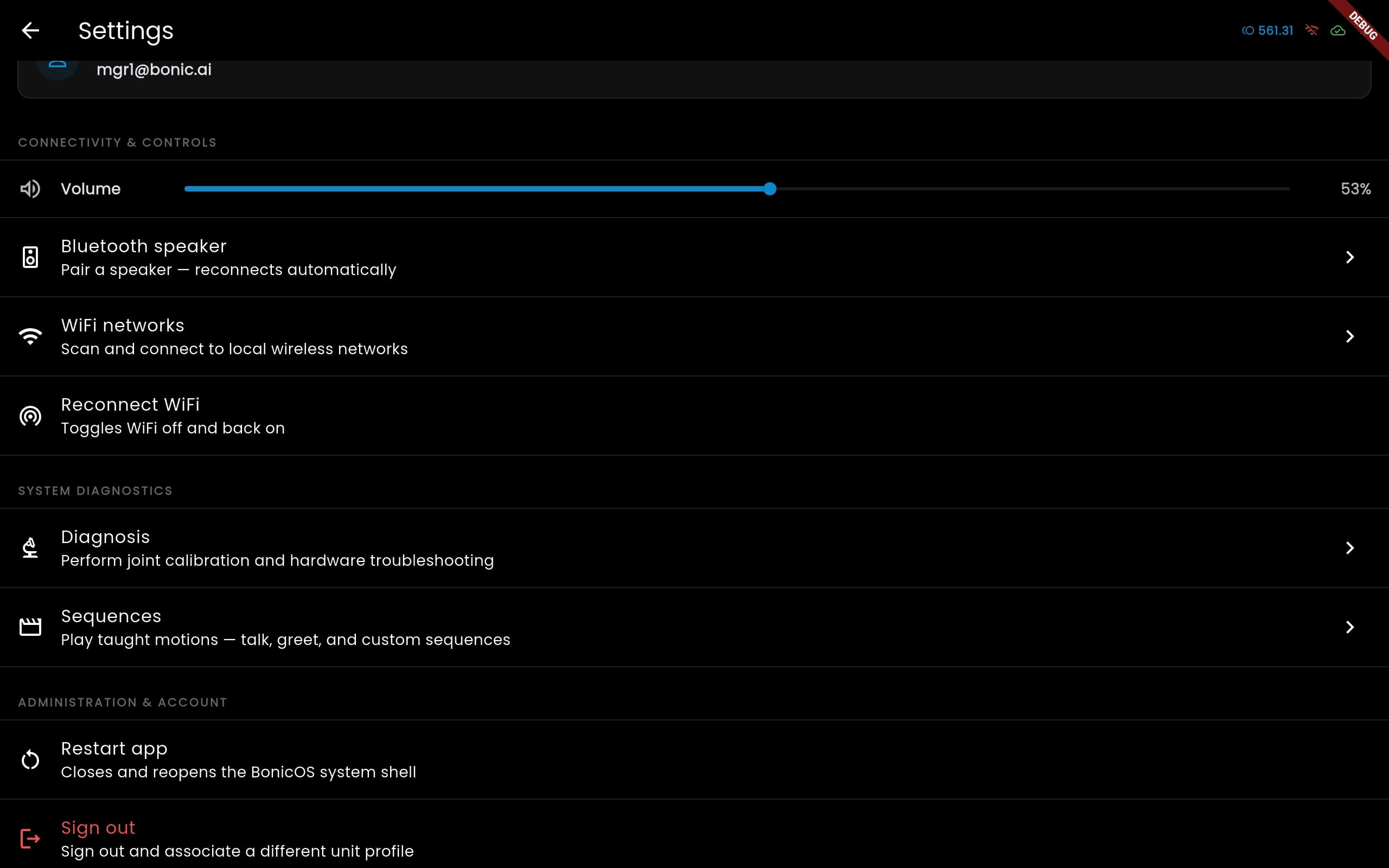
Tap the gear icon on the Home Dashboard to open Settings. All settings require a settings password (configured on bonic.ai) to unlock.
6.1 Connectivity & Controls
| Setting | What It Does |
|---|---|
| Volume | Adjusts the robot’s speaker volume (0–100%) |
| Brightness | Adjusts the tablet screen brightness (0–100%), if supported |
| Bluetooth Speaker | Pair an external Bluetooth speaker — reconnects automatically |
| WiFi Networks | Scan and connect to local wireless networks |
| Reconnect WiFi | Toggles WiFi off and back on (quick fix for connectivity issues) |
6.2 System Diagnostics
| Setting | What It Does |
|---|---|
| Diagnosis | Opens the hardware diagnostic panel (see Section 7) |
| Sequences | Opens the motion sequence player (see Section 8) |
6.3 Administration & Account
| Setting | What It Does |
|---|---|
| Restart App | Fully closes and reopens BonicOS |
| Sign Out | Signs out and returns to the login screen — allows switching to a different robot or account |
6.4 Danger Zone (Device Owner Only)
These options only appear if the tablet is provisioned as a Device Owner (kiosk deployment):
| Setting | What It Does |
|---|---|
| Kiosk Mode | Locks the tablet to BonicOS — the user cannot exit the app or access Android settings |
| Home Launcher | Sets BonicOS as the device’s home launcher — the app opens automatically on boot |
| Turn Screen Off | Turns off the display (the app keeps running in the background) |
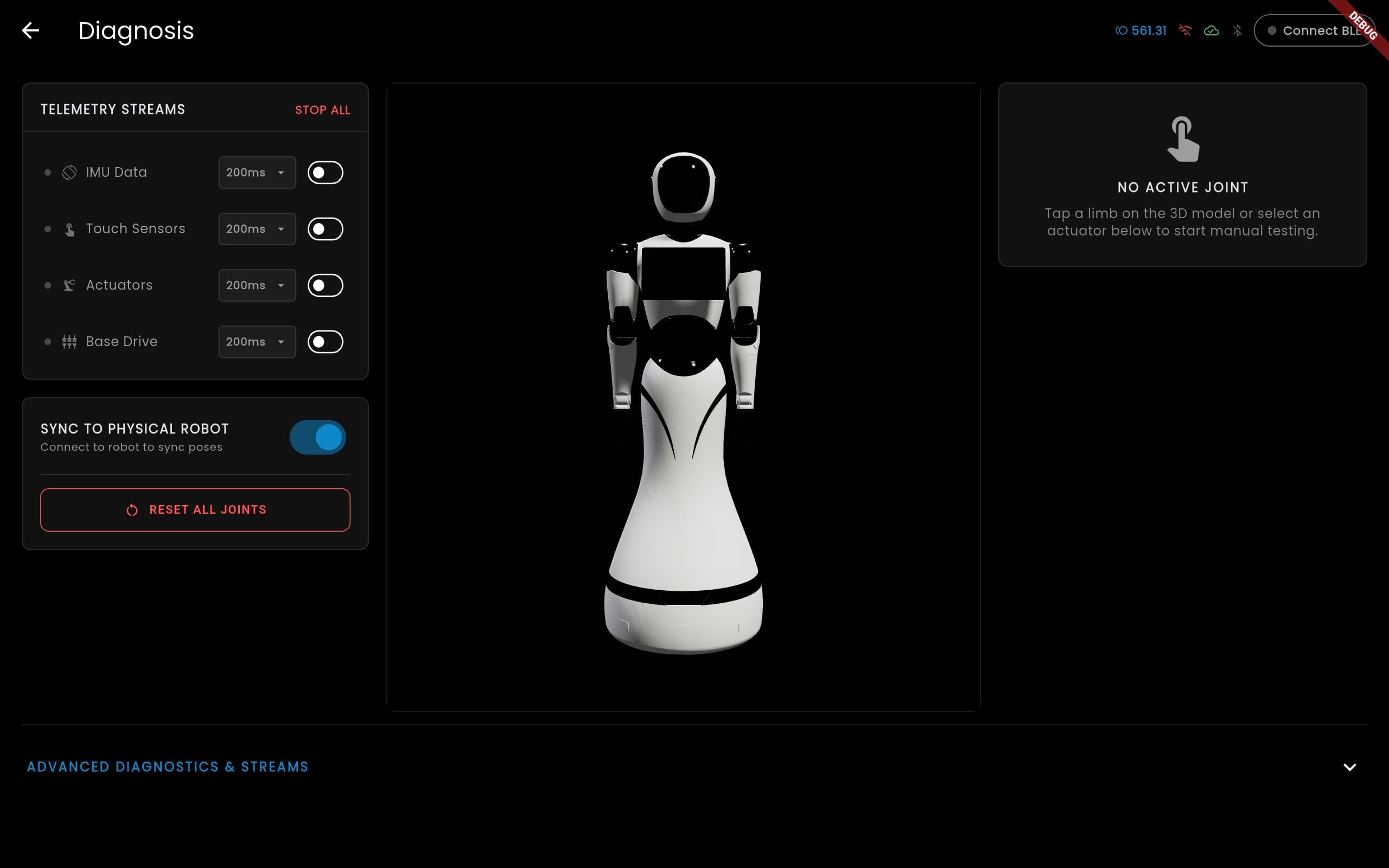
7. Diagnosis — Hardware Testing
The Diagnosis panel is a technician-level tool for testing and calibrating the robot’s hardware. Access it from Settings > Diagnosis.
7.1 What You Can Do
- 3D Joint Visualiser — interactive WebGL model showing the robot’s joints in real time
- Servo Control — move individual servos by angle, speed, and acceleration
- Motor Control — test wheel motors with velocity commands
- LED Matrix — send text, animations, and custom patterns to the LED display
- IMU Data — view live accelerometer and gyroscope readings
- Touch Sensors — monitor touch events in real time
- Battery Telemetry — detailed voltage, current, SOC, and active servo info
- Ping Test — measure BLE round-trip latency
- Alert History — view all hardware alerts received this session
- NFC Tags — view scanned NFC/RFID tags
7.2 Telemetry Streams
You can enable/disable individual telemetry streams with configurable update intervals:
| Stream | Data |
|---|---|
| IMU | 6-axis accelerometer + gyroscope |
| Touch | Capacitive touch sensor events |
| Matrix | LED matrix state feedback |
| Servos | Angle, speed, load, and temperature per servo |
| Base Motors | Wheel encoder and motor state |
Important: The Diagnosis panel drives hardware directly over Bluetooth, bypassing cloud control. It is only available when BonicOS has active control of the robot (not when yielded to bonic.ai — see Section 10).
8. Sequences — Robot Motions
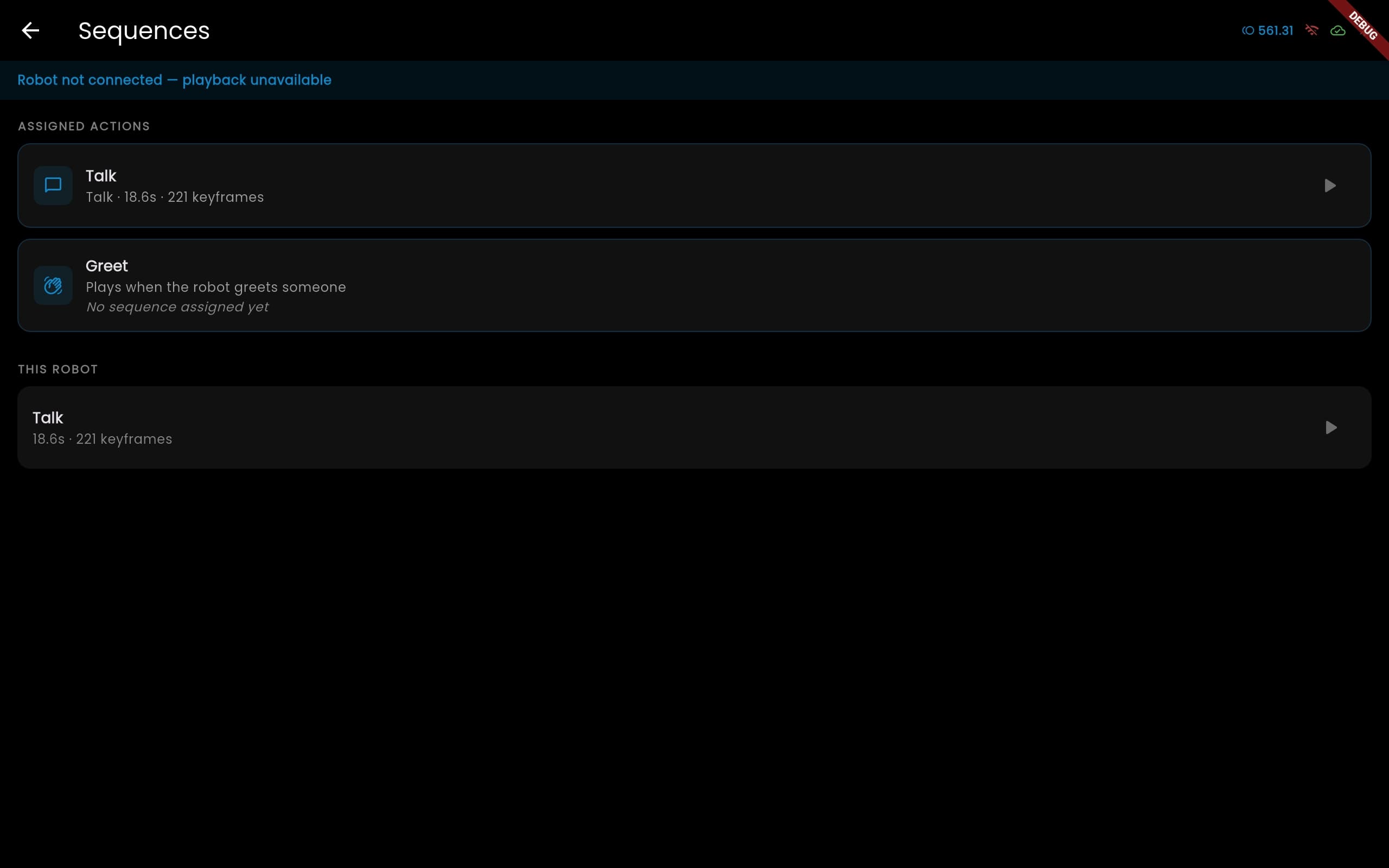
The Sequences panel lets you preview and play taught motion sequences — pre-recorded servo movements like waving, dancing, greeting, etc.
Access it from Settings > Sequences.
8.1 Sequence Library
Shows all sequences taught to this robot on bonic.ai. Each card displays:
- Sequence name
- Duration
- Play button
Tap Play to run a sequence on the robot’s body immediately.
8.2 Action Assignments
Two special assignments control when sequences play automatically:
| Assignment | When It Plays |
|---|---|
| Talk | Continuously while the AI agent is speaking |
| Greet | When the robot greets a new person |
These are configured on bonic.ai and shown here for reference.
8.3 Transport Controls
When a sequence is playing:
- Play / Pause — toggle playback
- Stop — halt the sequence and reset the robot to its neutral position
- Progress bar — shows current position in the sequence
Warning: Leaving the Sequences screen automatically stops any playing sequence. The robot will never be left running a sequence without supervision.
9. App Updates
BonicOS checks for updates automatically:
- Once on every launch
- Every 6 hours while running
When an update is available:
- A banner appears on the Home Dashboard
- Tap to download — progress is shown in real time
- Once downloaded, the app installs automatically
No manual intervention is needed for the update process — just tap the banner when you see it.
10. Cloud Control & Yielding
10.1 How It Works
The robot’s physical hardware (motors, servos, LEDs) can be controlled from two places:
- BonicOS (this app) — the default, always-on controller
- bonic.ai (the web platform) — remote control from a browser
Only one can control the hardware at a time.
10.2 Yielding
When someone takes control of the robot from the bonic.ai web platform:
- A “Control is with bonic.ai” banner appears on the Home Dashboard
- The app disconnects from Bluetooth and stops sending commands
- The web user has full control of the robot’s body
- All other app features (conversations, marketing, etc.) continue to work
10.3 Taking Back Control
Tap the “Take back control” button on the banner. The app reconnects to Bluetooth and resumes normal operation.
11. Troubleshooting & FAQ
The robot shows “OFFLINE”
- Check Bluetooth: Make sure Bluetooth is enabled on the tablet. BonicOS connects automatically — no manual pairing is needed.
- Check distance: The tablet must be within Bluetooth range of the robot’s ESP board (approximately 10m).
- Restart the app: Settings > Restart App.
The AI agent isn’t responding
- Check internet: Standard and Premium tiers require an internet connection.
- Try Edge tier: If you’re offline, switch the agent to Edge tier on bonic.ai — it runs fully on-device.
- Check the agent status: Make sure an agent is assigned to this robot on bonic.ai.
The showreel isn’t playing in marketing mode
- Wait for syncing: The first time a marketing session starts, all media must download. The “Syncing” overlay shows progress.
- Check internet: The initial sync requires a network connection to download media.
Face detection isn’t working
- Lighting: Face detection works best in well-lit environments.
- Distance: The person must be close enough — warnings like “Come closer to me” appear if they’re too far.
- Angle: The person must look straight at the robot. Head tilts beyond 15–18 degrees are rejected.
The email/phone dialog doesn’t appear during marketing
- The dialog appears after the robot finishes speaking its question. Wait for the audio to finish.
- If the AI asks for a name, no dialog appears — names are collected conversationally, not via a keyboard.
WiFi keeps disconnecting
- Go to Settings > Reconnect WiFi to toggle the connection.
- Go to Settings > WiFi Networks to forget and re-join the network.
The “Control is with bonic.ai” banner won’t go away
- Tap “Take back control” on the banner.
- If someone is still controlling the robot from the web, they need to release control first.
How do I switch to a different robot?
Go to Settings > Sign Out. This clears the robot selection and returns to the login screen where you can sign in and pick a different robot.
How do I update the app?
Updates are automatic. When available, a banner appears on the Home Dashboard — just tap it.