Adding Models to Existing Worlds
Before you start: This page assumes you already have a world running in Gazebo — either the default world or one of your own.
Need a world first? See Custom World Creation.
So far you’ve been launching complete world files. But you can also insert individual objects — people, furniture, equipment — into a world that’s already running, without stopping the simulation.
Download the Model
Download the Walking Person model from Gazebo Fuel:
https://app.gazebosim.org/Natzy/fuel/models/Walking person
Extract the downloaded archive to get the model files.
Set Up the Model Directory
Create a directory for the model inside your workspace and move the extracted files into it:
mkdir -p /root/dev_ws/models/person_walking
mv <your_extracted_files_here> /root/dev_ws/models/person_walking/
Once moved, your directory should look like this:
dev_ws/models/person_walking/
├── materials
│   └── textures
│       ├── eyebrow001.png
│       ├── eyebrow001-unmodified.png
│       ├── green_eye.png
│       ├── jeans01_normals.png
│       ├── jeans_basic_diffuse.png
│       ├── male02_diffuse_black.png
│       ├── male02_diffuse_black-unmodified.png
│       ├── teeth.png
│       ├── tshirt02_normals.png
│       ├── tshirt02_texture.png
│       └── young_lightskinned_male_diffuse.png
├── meshes
│   └── walking.dae
├── model.config
├── model.sdf
└── thumbnails
    ├── 1.png
    ├── 2.png
    ├── 3.png
    ├── 4.png
    └── 5.png
Why is the directory named
person_walking?This isn’t arbitrary — the directory name is intentionally chosen to match the model name referenced inside the SDF file. Gazebo models use relative paths and URI references that assume a specific directory structure. If you rename the folder, Gazebo can no longer resolve the mesh and texture paths inside the SDF, and the model will either fail to load or appear invisible. Keeping the directory name aligned with what the SDF expects avoids missing asset errors entirely.
Tell Gazebo Where to Find It
By default, Gazebo only searches a handful of built-in locations for models. If your model lives outside those paths — as it does here — Gazebo simply won’t find it, and the spawn command will fail silently or throw a path error.
The IGN_GAZEBO_RESOURCE_PATH environment variable tells Gazebo which additional directories to search when resolving model assets. You’ll set this in Terminal 1 before launching the world.
Spawn the Model Into the Running World
This takes two terminals — one to run the world, one to insert the model into it.
Terminal 1 — Launch the world
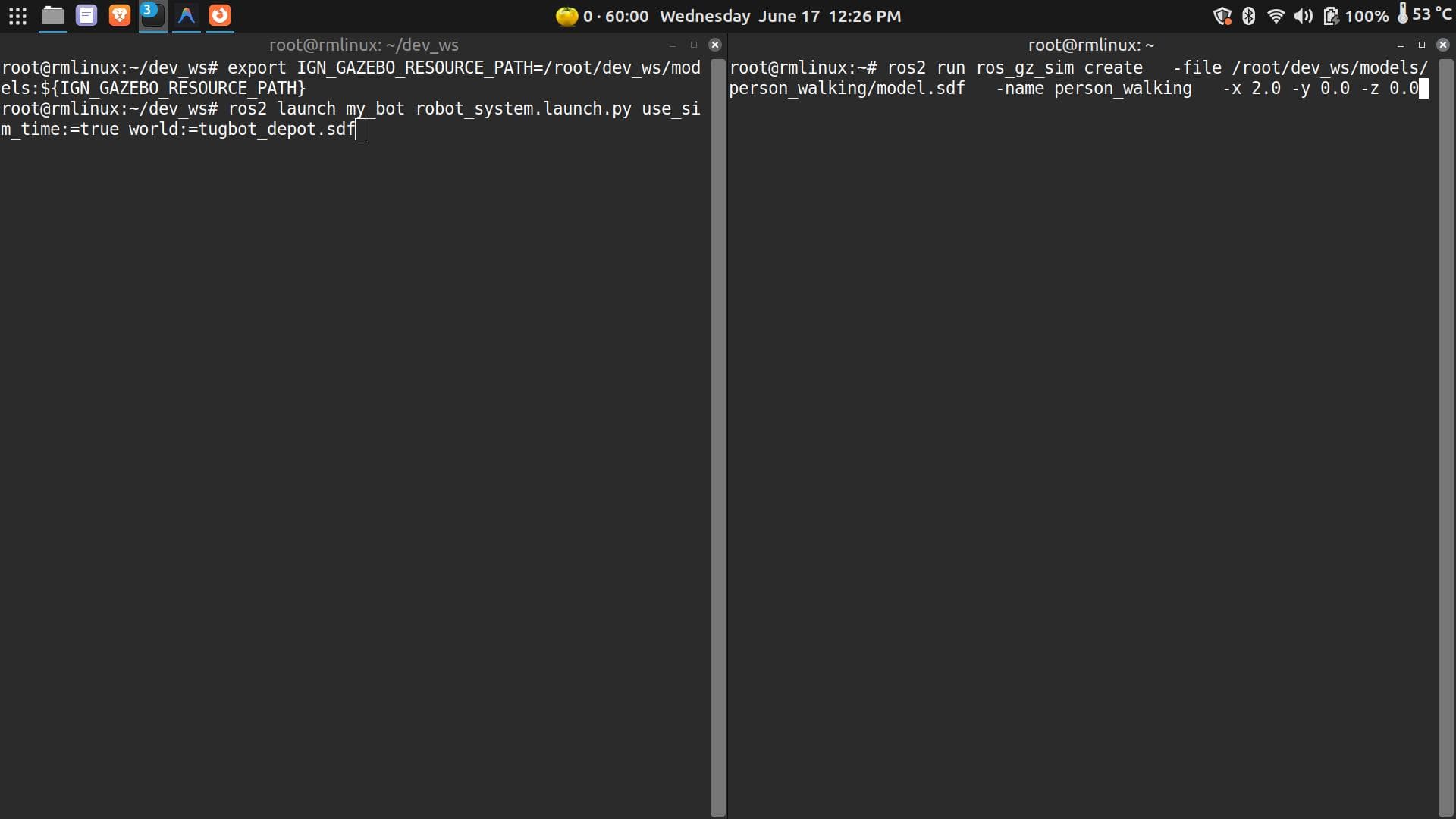
First, set the environment variable so Gazebo knows where to find your downloaded models:
export IGN_GAZEBO_RESOURCE_PATH=/root/dev_ws/models:${IGN_GAZEBO_RESOURCE_PATH}Note: To avoid running this every time, add it to your
.bashrconce:echo 'export IGN_GAZEBO_RESOURCE_PATH=/root/dev_ws/models:${IGN_GAZEBO_RESOURCE_PATH}' >> ~/.bashrc source ~/.bashrc
Then launch the world:
cd ~/dev_ws
ros2 launch my_bot robot_system.launch.py use_sim_time:=true world:=tugbot_depot.sdf
Wait until the world is fully loaded in Gazebo before moving to Terminal 2.
Terminal 2 — Insert the model
With the world already running, open a new terminal and spawn the Walking Person model into it:
ros2 run ros_gz_sim create \
  -file /root/dev_ws/models/person_walking/model.sdf \
  -name person_walking \
  -x 2.0 -y 0.0 -z 0.0
Here’s what each argument does:
-file— path to the model’s SDF file. Gazebo reads this to understand the model’s geometry, physics, and appearance.-name— the name this instance is given inside the running simulation. Used to identify, move, or remove the model later.-x,-y,-z— spawn position in the world, in metres. Adjust these to place the model where you want it.
A note on
-nameIt’s good practice to keep
-name person_walkingmatching the model name defined inside the SDF file. You can technically give it a different runtime name, but this can make debugging harder — especially when Gazebo logs or tools refer to the model by name and the names don’t match what you expect.
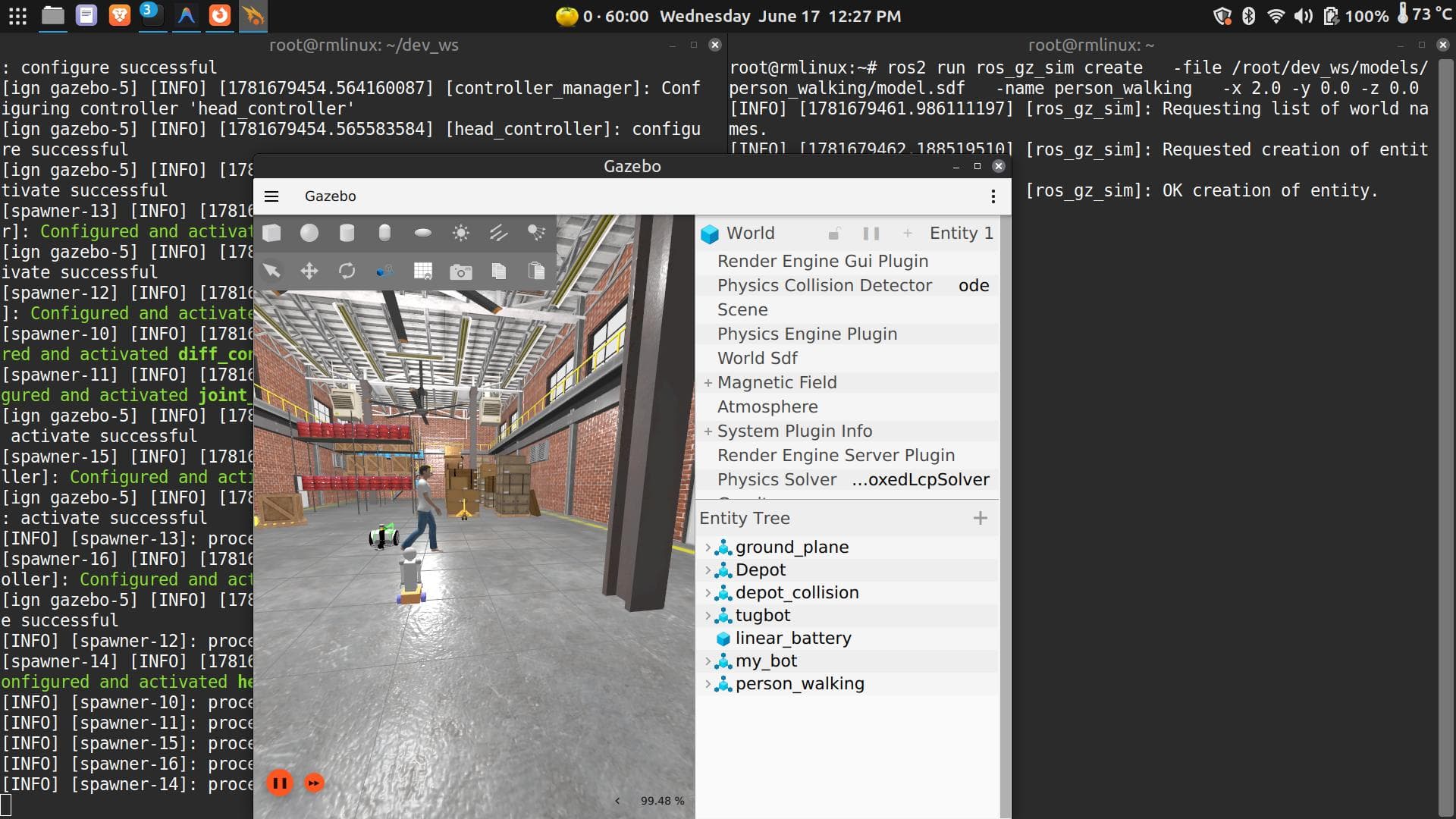
This is how you dynamically insert humans, furniture, and other objects into any running world — without restarting Gazebo and without modifying the world file itself.
Where to Go From Here
With custom worlds and dynamic model spawning in your toolkit, you have everything you need to start working on SLAM, autonomous navigation, obstacle avoidance, path planning, and sensor pipelines — all without touching the physical robot until you’re ready.