Basic troubleshooting and common issues
Quick solutions for the most common setup, pairing, audio, conversation, and navigation problems across the BonicAI Dashboard, BonicOS, and the BonicBot Controller App.
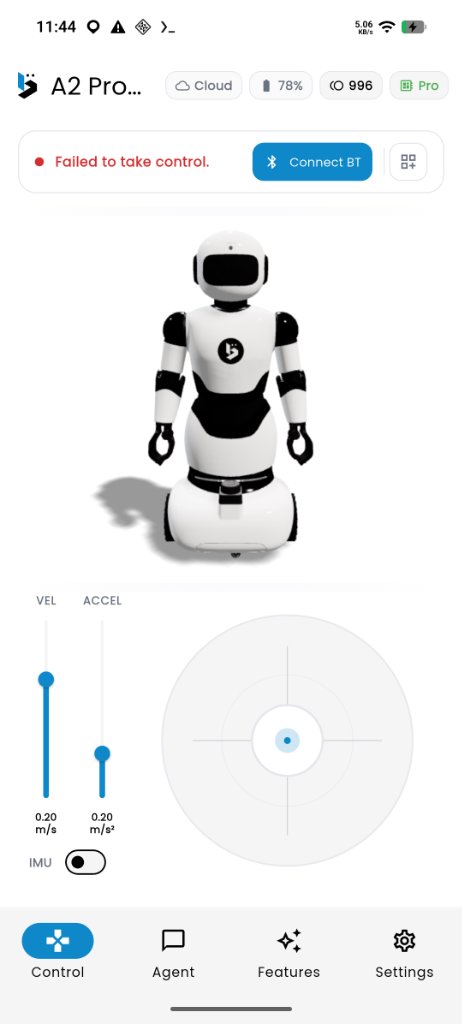
Controller App shown.
Account and robot access
My dashboard shows “Your robots (0)” or the robot is missing
If you are the buyer and your robot is missing after signing in with the account used for purchase, contact BonicAI support at support@autobonics.com. The buyer is the main Owner of the organisation created under the buyer’s organisation name.
If the robot is already assigned to your organisation but only missing from your accessible robots, check the access setup below.
- Why this happens: An Organisation Owner can own an organisation with robots, but still see 0 under Your robots on the dashboard home screen. In BonicAI, organisation ownership and robot access are separate.
- How to resolve:
- If you are an Organisation Owner, open Organisation > Departments. Select Manage Access next to your department, and assign the robot role to User or Admin.
- For direct membership, ask an Organisation Owner who already has Admin access to the robot to open Dashboard > Your robots > [Your Robot] > Members and add your account. You cannot use this route to give yourself access when you lack the required permissions.
- Once access is assigned, refresh the dashboard. The robot will appear under your accessible robots.
BonicOS sign-in fails for Google accounts
- Why this happens: The Controller App supports Continue with Google, but BonicOS on the robot’s chest touchscreen requires an email and password.
- How to resolve:
- On a computer or phone, sign in to bonic.ai using Google sign-in.
- Open Settings > Security.
- Under Change Password, select Change password.
- Open the password-reset link sent to your registered email address and create a password.
- Return to the robot screen and sign in to BonicOS using your email address and this newly created password.
Controller App installation and connections
Cannot install the Controller App on iPhone or desktop
- Why this happens: The BonicBot Controller App is currently available exclusively for Android devices (phones and tablets). iOS and desktop platforms are not supported.
- How to resolve: Install the app on a compatible Android device running Android 7.0 (Nougat, API 24) or higher from the Google Play Store (Package ID:
com.autobonics.bonicbot).
Controller App cannot connect via Bluetooth (Direct Mode)
- Why this happens: Direct Mode communicates over local Bluetooth.
- How to resolve:
- Enable Bluetooth and allow the app’s requested Nearby devices, Bluetooth, or Location permissions. Permission names vary by Android version.
- Move your phone close to the robot (within 10 to 15 metres in line of sight) and retry the connection.
- Check whether another phone or tablet is already connected in Direct Mode. The robot’s Bluetooth radio only supports one active direct connection at a time. Disconnect the other device before trying again.
- If operating in an area without Wi-Fi, select Force connect in the top Connect Bar to link directly over Bluetooth without checking cloud status.
Audio and speaker routing
Agent speech plays from my phone’s speaker instead of the robot
- Why this happens: When using the Controller App, the conversational audio stream originates on your Android phone. Controlling the robot over Bluetooth does not automatically route media audio to the robot’s physical amplifier.
- How to resolve:
- On your Android phone, open your system Settings > Connected devices > Bluetooth.
- Pair your phone with the robot’s Bluetooth audio speaker.
- Select the paired speaker as your phone’s media output, check its volume, and test an agent response.
BonicOS speech is silent on the chest touchscreen
- Why this happens: Master volume may be muted or the onboard amplifier may have unlinked.
- How to resolve:
- In BonicOS, select Settings (the gear icon) in the top status bar.
- Ensure the Volume slider is set to a comfortable audible level.
- Select Bluetooth speaker and verify that This robot’s speaker is connected. If disconnected, select it to re-establish connection.
Conversations and AI agents
Controller App refuses connection: “Auth required agents are unsupported”
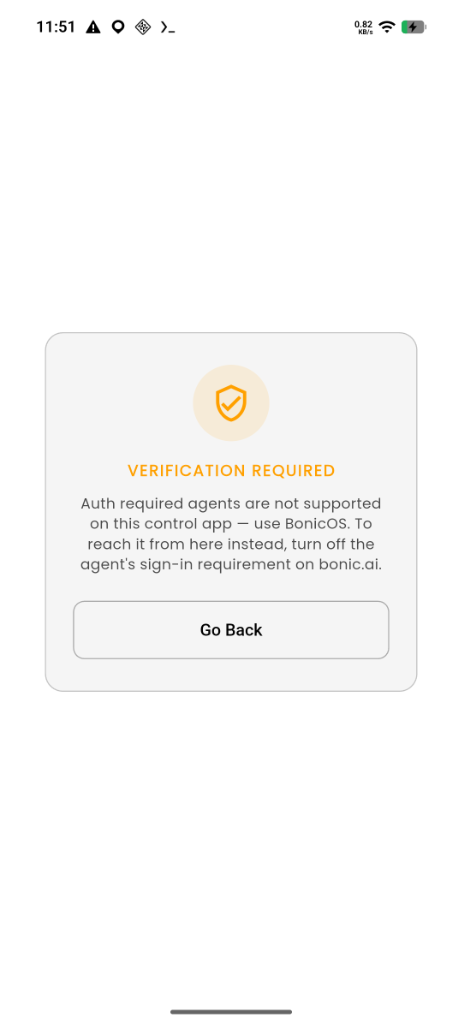
Controller App shown.
- Why this happens: The Controller App has no physical identity check-in gate (no camera facial recognition or RFID card reader). If the active agent has Authentication Required enabled in BonicAI, the Controller App refuses connection.
- How to resolve:
- To talk to an authentication-required agent, use BonicOS on the robot’s chest touchscreen, where you can verify identity with face recognition, an RFID badge, or email/password.
- Alternatively, in BonicAI, an administrator can switch the active agent to an Open Access agent (such as the Default Agent) or disable the authentication gate on the department agent.
Controller App refuses connection: “Edge tier is unsupported”
- Why this happens: The Controller App carries no local AI model and exclusively runs cloud tiers (Standard and Premium).
- How to resolve:
- To converse with an offline Edge agent, talk directly to the robot using BonicOS on an S1 or M1 chest screen (or an A2 robot with the BonicOS add-on).
- For the Controller App, assign a Standard or Premium cloud agent in BonicAI.
Robot stops responding or says “Out of credits”
- Why this happens: Cloud AI responses consume robot credits. If credits reach zero, the agent cannot generate responses.
- How to resolve: Ask your Organisation Owner to sign in to bonic.ai , open Dashboard > Your robots > [Robot] > Billing, and contact BonicAI support to add robot credits.
Newly assigned agent is not active yet
- Why this happens: Changes to the active agent take effect when the next conversation begins. Any conversation already in progress continues with its existing agent until ended.
- How to resolve: Select the back control to end the active conversation session, then re-open the conversation to load the new agent.
Microphone permission is denied or the agent cannot hear me
- Check that the microphone is enabled on the conversation screen. Select it when the screen shows Ready — tap to speak.
- In Controller, select Open Settings when offered and allow microphone permission for the app.
- Return to the app and select I’ve enabled it — Try Again when shown.
- Wait for Listening…, then test with a short sentence near the device running the conversation: the phone for Controller, or the robot screen for BonicOS.
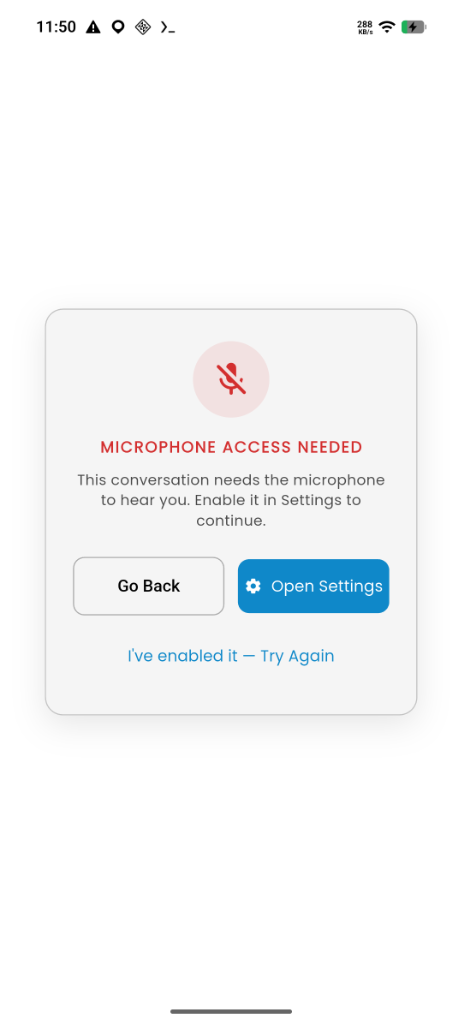
Controller App shown.
You should see: listening feedback followed by a response. If permission controls are unavailable on the locked BonicOS screen, ask the person responsible for the robot’s setup for help.
Conversation connection fails
- Check internet access on the device running an online conversation and check the active agent.
- Select Try Again if offered on the error screen.
- If Controller reports an unsupported agent, use Standard or Premium without authentication requirements. Edge works only in BonicOS; retrying does not change this restriction.
- If it still fails, record the displayed error and use Get help.
You should see: preparation resume and the conversation reach listening or ready status.
BonicOS rejects a protected conversation
- Ask a Department Manager or Organisation Owner to check the agent’s permitted access groups and your membership.
- Use a method enabled for that agent: face recognition, registered RFID card, or email/password.
- For face or RFID verification, ask the responsible person to check that your profile or badge is registered.
- After configuration is saved, reopen the conversation and try again.
You should see: successful verification followed by the conversation. See department-agent security.
The agent keeps speaking
Select the square stop-speaking button to interrupt the reply. To control listening, use the microphone when it returns. These conversation controls do not cancel robot navigation; use navigation Stop for travel.
Motion sequences
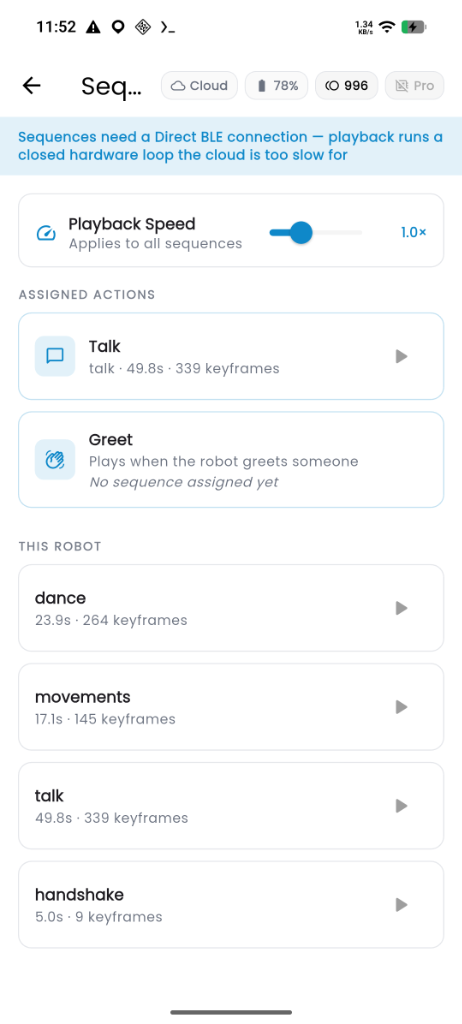
Controller App shown.
Sequence playback is unavailable or Play is disabled
- Check that you selected the intended robot and a sequence with recorded keyframes and a non-zero duration.
- Check the robot’s Bluetooth connection. In Controller, connect in Direct Mode before using the A2 Features > Sequence Library.
- If another device holds robot control, release control on that device before retrying from this one.
- On BonicOS, read the playback-unavailable message and restore the robot connection before selecting Play.
You should see: playback become available once the device can control the connected robot and the sequence contains motion.
My sequence edits or name changes are missing
- In BonicAI, open Dashboard > Your robots > [Your Robot] > Sequence > This robot.
- Open the intended sequence with Edit and check its contents.
- Select Save, then reopen it to verify the stored result.
- Check the same robot and sequence in the playback interface before replaying.
You should see: the saved name and motion in the selected sequence. See Edit an existing sequence.
A sequence does not play while the agent speaks
- Check the robot’s Talk assignment in BonicAI Sequence > Assigned Actions.
- For agent-requested playback, enable Agent on the sequence and Sequence Play in the agent’s configuration, then save configuration changes.
- For Controller accompanying movements, check Direct Bluetooth and the supported model.
- Start a new conversation to test.
You should see: the configured sequence play when its supported action is triggered.
How do I stop a sequence on BonicOS?
Select the square Stop icon in the playback bar. It stops playback and rewinds progress. Pause keeps the playback position for resuming. Leaving the screen also commands the joints back to their default pose when control is available, so keep their path clear. See BonicOS playback controls.
Resume a sequence after Bluetooth reconnects
- Reconnect Bluetooth and check that the robot and its movement path are clear. Controller playback requires Direct mode; BonicOS must have control of the robot.
- If the same sequence is still loaded at its paused position, select Play to continue from that point. Reconnecting alone does not resume playback.
- To replay from the beginning, select Stop, then Play. If playback was already at the end, Play starts from the beginning.
You should see: playback continue from the paused point, or from the beginning after Stop. Leaving the playback screen or loading another sequence may reset the playback position.
Navigation and mapping (Pro models)
Processor status displays “OFFLINE”
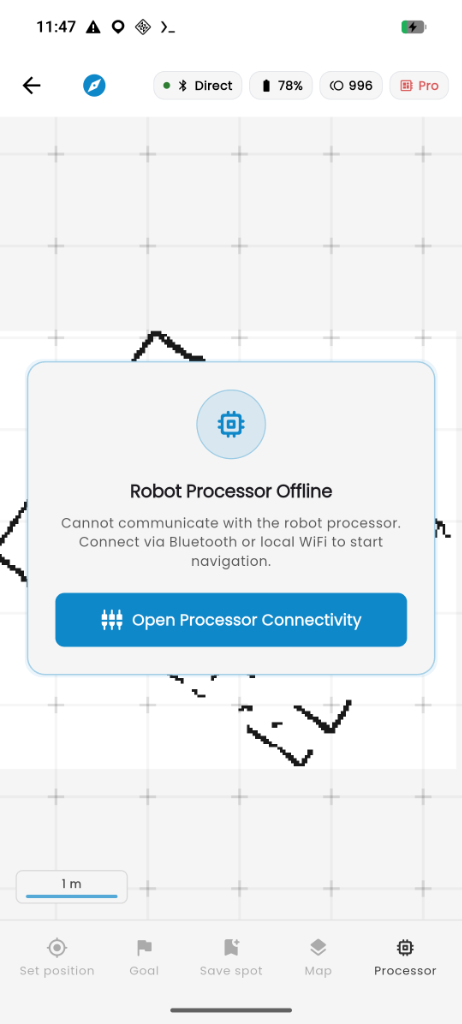
Controller App shown.
- Why this happens: The navigation processor has not joined your local Wi-Fi network, or is on a different network subnet than your controlling device.
- How to resolve:
- Both your controlling device (phone or tablet) and the robot processor must be connected to the same local Wi-Fi network.
- Re-send network credentials over Bluetooth:
- On Controller App: Open the processor sheet, enter your Wi-Fi SSID and Password, and select Send to Robot.
- On BonicOS: Open Settings > Robot processor and select Connect Robot to “[SSID]”.
- Wait approximately one minute for the processor to join the network and display its green ONLINE badge.
Pro controls disabled or “Software Stopped”
- Why this happens: The Robot Software Stack (ROS) is currently halted.
- How to resolve:
- In the processor sheet (or navigation toolbar), select Start Software Session (or Start Robot Software Stack).
- Wait 20 to 30 seconds for sensors and navigation runtimes to initialize.
- Toggle Autostart on boot to ON so software starts automatically on all future robot boots.
Robot drives toward incorrect position or loses location
- Why this happens: Localization needs calibration against the floor map.
- How to resolve: Select Position (or Set position) in the navigation toolbar. Tap the robot’s physical location on the floor map, and drag in the direction the robot is physically facing. Select Confirm, then check that the robot marker matches its physical position and wait for navigation to become ready before sending another destination.
Map saving or deletion reports an error
- Read the displayed error and check the saved-map list. Do not assume the action succeeded.
- For saving, enter a non-empty map name and check the robot connection before retrying. If the robot remains powered on and connected after the save fails, retry saving the current scan; you do not need to map again. Reusing an existing map name overwrites that map and removes its saved destination spots. Save those destinations again on the replacement map. If power is lost before saving succeeds, create the map again.
- For deletion, check that the selected map is still present before retrying. Deleting a map in the app also removes its saved places and dock.
- If the connection was interrupted, restore it and inspect the map list before creating or deleting anything else.
You should see: a save confirmation and the map in the list, or a successfully deleted map removed from it.
Save a scan after the app restarts
- Reopen the app and reconnect to the robot processor. In Controller, restore the Direct connection too.
- Check the live navigation screen. If the processor still reports MAPPING and the scan is available, select Save Map.
- Enter a name and select Save This Map. Wait for a successful save result before leaving the session.
You should see: the save result for the current mapping session. The apps allow saving a mapping session reported by the processor after reconnecting; they do not restore an unsaved scan from the app itself.
A destination is refused or navigation does not start
- Read the navigation error. Check that the robot software is running and the correct map is loaded.
- Set the robot’s physical position and heading, then wait for navigation to become ready.
- Check that the destination is on accessible clear floor and that the route is unobstructed.
- Restore the required connection: same-network access for Pro navigation and Direct Bluetooth for Controller.
- Retry only after checking the physical robot and the status.
You should see: an accepted goal and navigation progress. An on-screen marker alone does not confirm that the robot has located itself or arrived.
The agent cannot navigate to a saved spot
- Check that the robot is Pro, navigation is ready, and the spot exists on the loaded map.
- Ask the agent’s configurator to enable Navigation and select Save Changes.
- Start a new conversation and request the destination by its saved name.
- In Controller, use a supported online agent and maintain the Pro connections.
You should see: navigation start when the destination request is accepted. See Navigate through an agent conversation.
BonicAI says Direct link is off
- Connect the computer and robot’s navigation processor to the same local network.
- Check that the processor is online and its navigation software is running.
- In Dashboard > Your robots > [Robot] > Navigation, select Connect.
- Wait for live data before sending movement commands. The last displayed map may be stale.
You should see: a connected status and live map updates. See BonicAI Direct Link.
Connection is lost while the robot is moving
If the Bluetooth connection is lost, the robot stops. BonicOS and Controller also pause app-side sequence playback and stop sending further sequence commands. Stopping does not mean the joints return to their default pose. Check the robot before reconnecting and resuming operation.
Losing the processor connection does not automatically send a navigation cancellation from either app. Treat any active navigation goal as unresolved until you reconnect and check its status. If the processor Wi-Fi connection is lost while Bluetooth stays connected, neither app automatically sends a navigation-cancel or Bluetooth stop command in response. Navigation Stop uses the processor connection, so a Bluetooth connection alone does not keep that navigation control available. Do not assume navigation has stopped. Reconnect and check the active goal before continuing.
Stop sending new commands. Restore the connection and inspect the robot’s physical state before continuing. When connected, use navigation Stop to cancel an active goal and check that movement has stopped. For a waypoint route, verify that the route itself is cancelled before resuming operation.
Warning: An on-screen stop requires a working connection. Do not assume it guarantees an instantaneous physical stop.
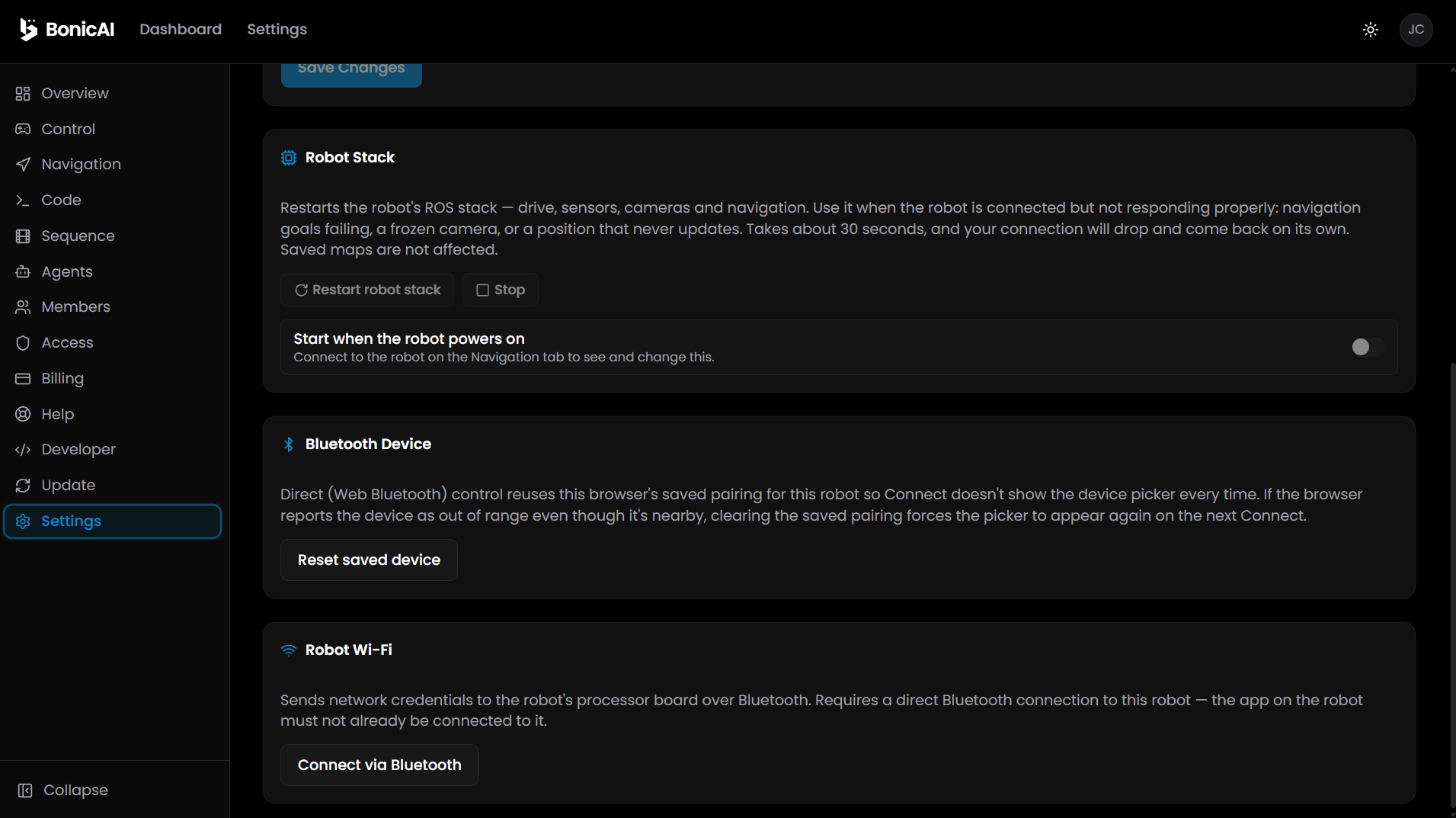
Reset a saved BonicAI browser Bluetooth pairing
Who can do this: People with Admin access to the robot
Use this if your browser cannot find the correct nearby robot or keeps selecting an old saved device. Stop robot movement before changing connections.
If you have User access, Settings is not available. Ask a robot Admin to help with the saved pairing in the browser you use for Direct control. Resetting a pairing in another browser does not clear yours.
- Open the robot in BonicAI and select Settings.
- Under Bluetooth Device, select Reset saved device.
- Return to Control or Sequence and select Connect.
- Select the correct robot in the browser’s device picker.
You should see: a fresh device-selection prompt and, after successful pairing, a connected status. This resets the browser’s saved selection; it does not factory-reset the robot.
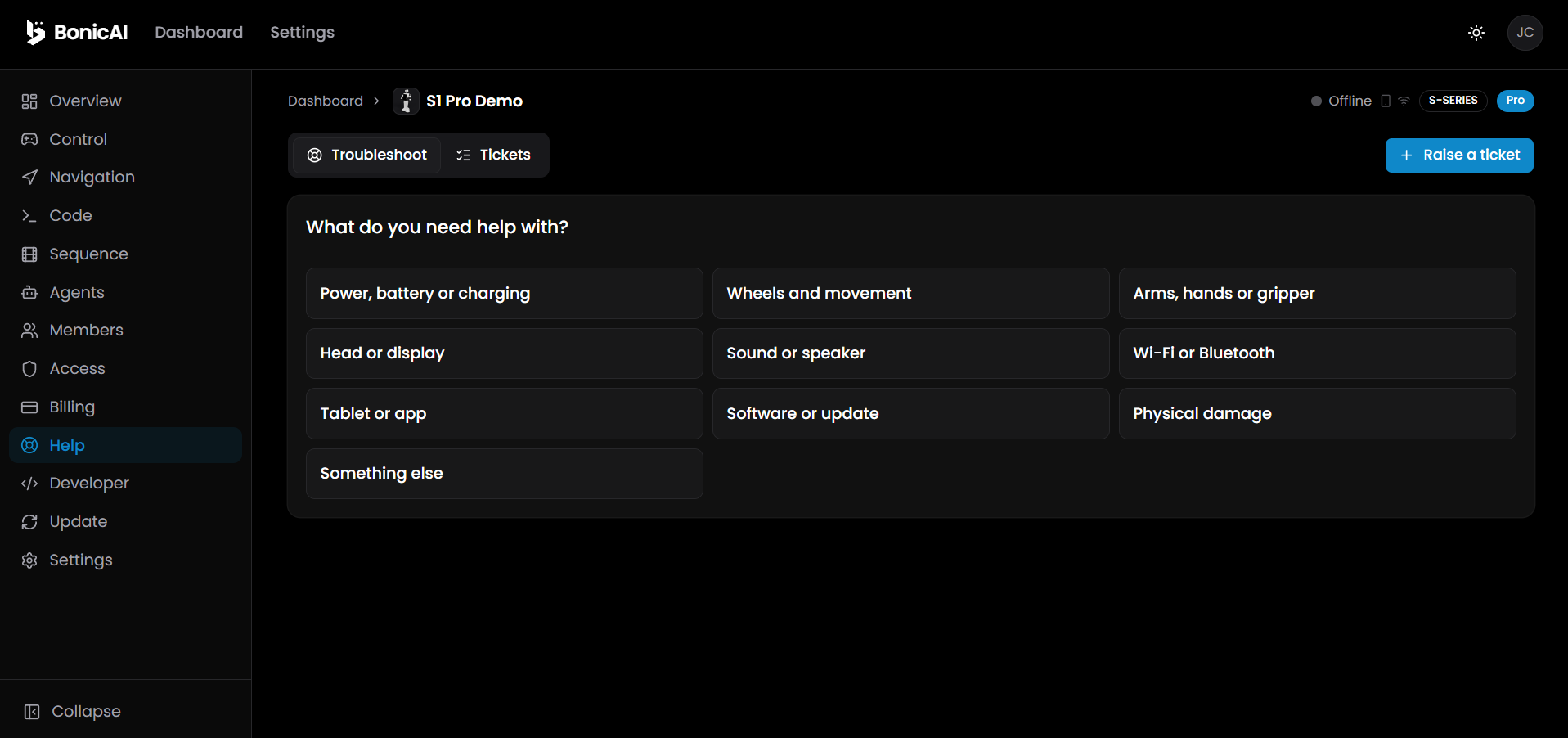
Use Help in BonicAI
Who can do this: People with User or Admin access to the robot
- Open the robot in BonicAI and select Help.
- In Troubleshoot, choose the category matching your issue and follow the offered guidance.
- If unresolved, select + Raise a ticket.
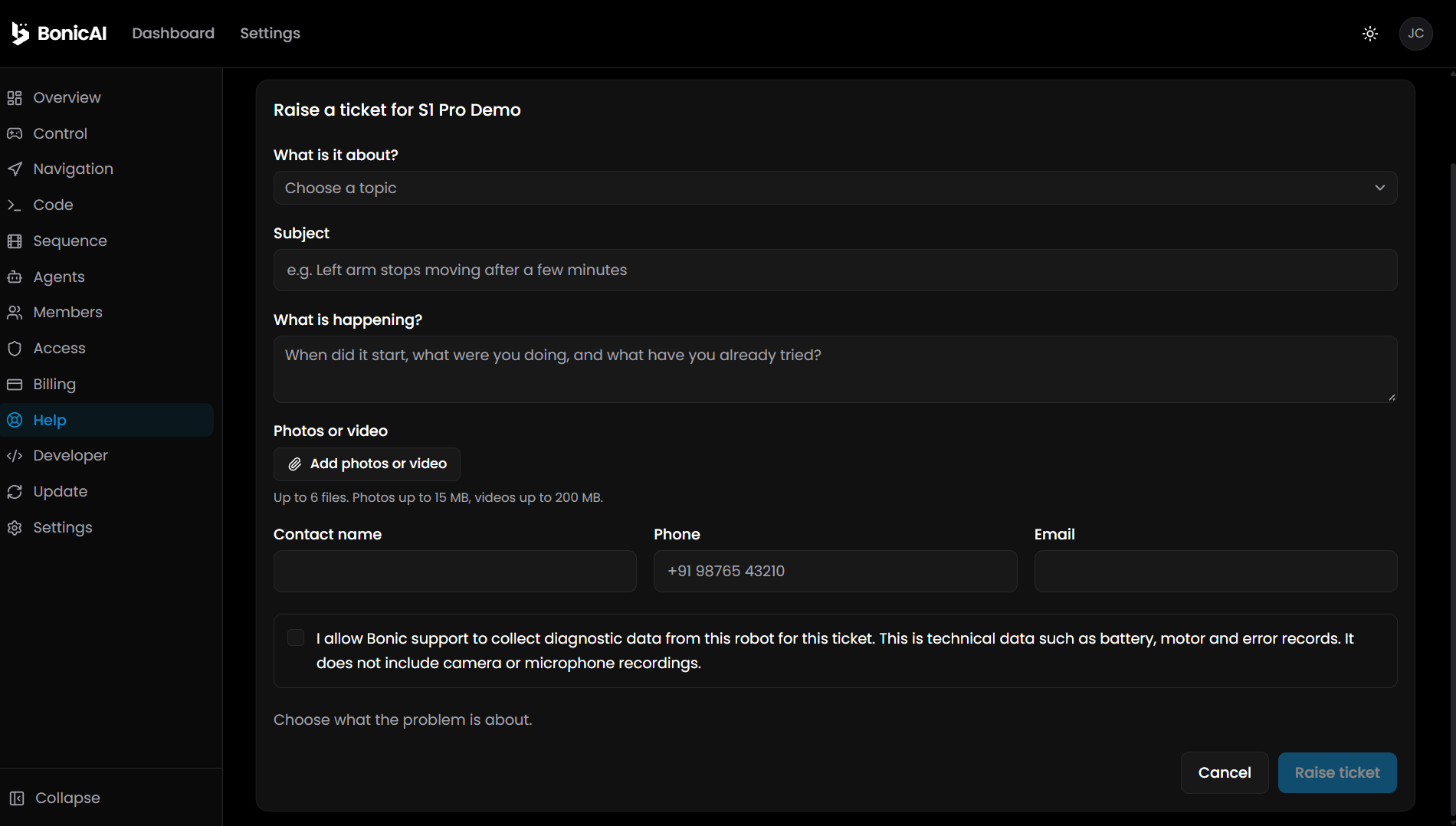
- Choose What is it about?, enter a Subject, and describe the issue under What is happening? Include the error, when it happens and what you tried.
- Optionally select Add photos or video. The form allows up to 6 files: photos up to 15 MB each and videos up to 200 MB each. Review the media and your contact details before submitting.
- Read the diagnostic-data consent text and select the required checkbox if you agree, then select Raise ticket.
- Open Tickets to check status and support responses.
You should see: the submitted request in Tickets. If submission fails, check the list before retrying to avoid duplicate requests. You can also email support using the details below.
Restart BonicOS when the app is not responding normally
- If you can still open menus, select Settings > Restart app under Administration & Account.
- In the Restart app? dialog (“Closes and reopens the BonicOS system shell”), select Restart.
- Wait for BonicOS to close and reopen.
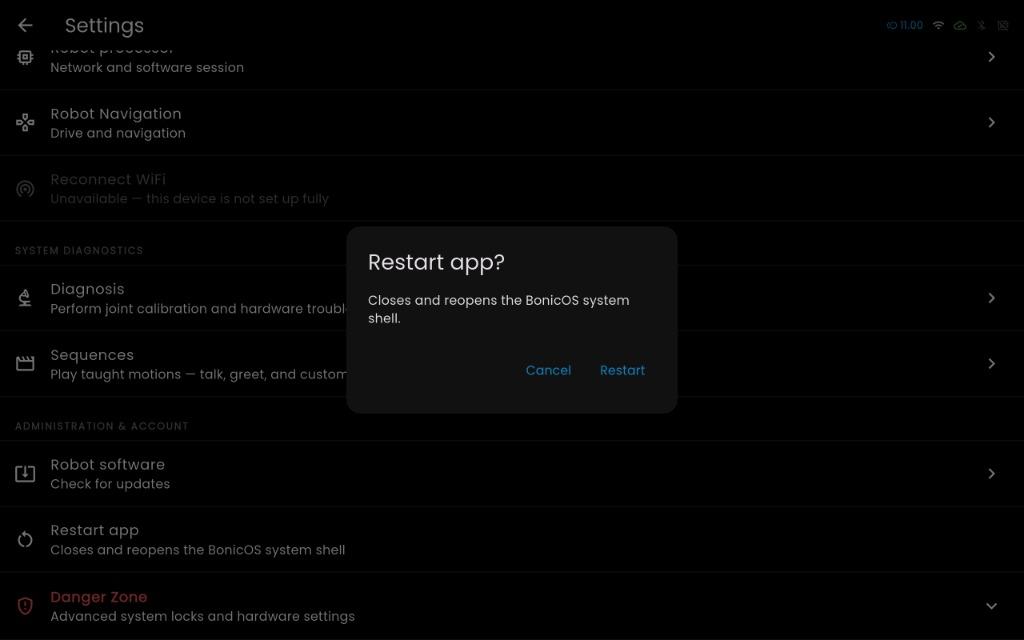
BonicOS shown.
You should see: BonicOS close and reopen cleanly on the chest tablet.
This action closes and relaunches BonicOS. An active conversation is interrupted. Start a new conversation after the app reopens.
Warning: Restart app does not explicitly stop a sequence or cancel navigation before closing. Stop playback and cancel navigation using their controls before restarting, and check that the robot is stationary. Do not use app restart as a stop control.
After reopening, check the robot connection and navigation status before operating it again. For software installation, see Update robot software.
Get help
Email support@autobonics.com with:
- Robot model and the selected interface (BonicAI, BonicOS or Controller)
- App version where available and the action you attempted
- The exact error and connection status
- Whether the problem affects one sequence, agent, map or destination, or all of them
Use fictional or redacted screenshots. Do not send passwords, RFID identifiers, private conversation text or customer floor plans.